This guide takes you from a new account to your first Twitch stream with ControlPlay. Without the USB device, your viewers can trigger overlay effects, sounds and voice effects. TTS unlocks per channel: the Streamer Hub shows your progress (Game Actions in the sidebar on controlplay.app, under TTS with your own voice), and the Full Experience Package unlocks it right away. Game actions, automatic push-to-talk in voice chat and the camera spin of the Tornado Alert! effect need the optional USB device. Plan about 45 minutes, off stream.
ControlPlay sets up OBS for you. The setup wizard adds the ControlPlay Alerts source and, on Windows 11 version 25H2 or newer, the ControlPlay Overlay window to the scenes you pick. Afterwards, check in OBS that both sit above your game.
| Step | Where | Time |
|---|---|---|
| 1. Account | Browser | 3 min |
| 2. Download and install | Browser | 2 min |
| 3. Mic and OBS | Windows, OBS | 5 min |
| 4. Sign-in and setup wizard | ControlPlay | 10 min |
| 5. Audio settings | ControlPlay | 3 min |
| 6. Extension on Overlay 1 | Browser, Twitch | 3 min |
| 7. Coins for viewers | Browser | 5 min |
| 8. OBS Dock | Browser, OBS | 2 min |
| 9. Test | ControlPlay, OBS, Twitch | 10 min |
What you need
- A Windows PC: 64-bit Windows 10 or 11 with an Intel or AMD processor.
- Ideally Windows 11 version 25H2 or newer (Settings → System → About). Then ControlPlay adds its overlay window to OBS for you. On older Windows, you add a Display Capture yourself, which shows the effects along with everything else on that monitor.
- Admin approval for one Windows prompt, only if you choose voice effects.
- Microphone access for desktop apps, switched on in the Windows privacy settings.
- OBS Studio 28 or newer. Other programs with a browser source can take the manual path, but we can't promise they work.
- Headphones for the voice tests.
- Your mic, plugged in and sounding good on its own.
- The USB device only for game actions, automatic push-to-talk and the Tornado Alert! camera spin.
Streaming from a console with a capture card? Sounds and overlay effects can still run on your PC stream, depending on your setup, and so can TTS once your channel has it. Game actions can't control a console.
Windows will ask you a few things
- SmartScreen may say Windows protected your PC. Click More info, check that the publisher is KOKOLIO GmbH, then click Run anyway.
- The firewall may ask on the first start. On one PC, either answer works. With two PCs, allow access on private networks.
- An admin prompt for the virtual mic driver appears if you choose voice effects. Windows may need a restart after it, and the wizard picks up where you left off.
- Your antivirus may quarantine ControlPlay files. Restore them or contact support, but don't switch your protection off.
1. Create your account
- Open the login page, click Login with Twitch and allow access on Twitch.
- Choose Your Language & Timezone: leave Region on Europe unless support tells you otherwise. Click Next after each step.
- Connect Your Platforms: Twitch is already linked.
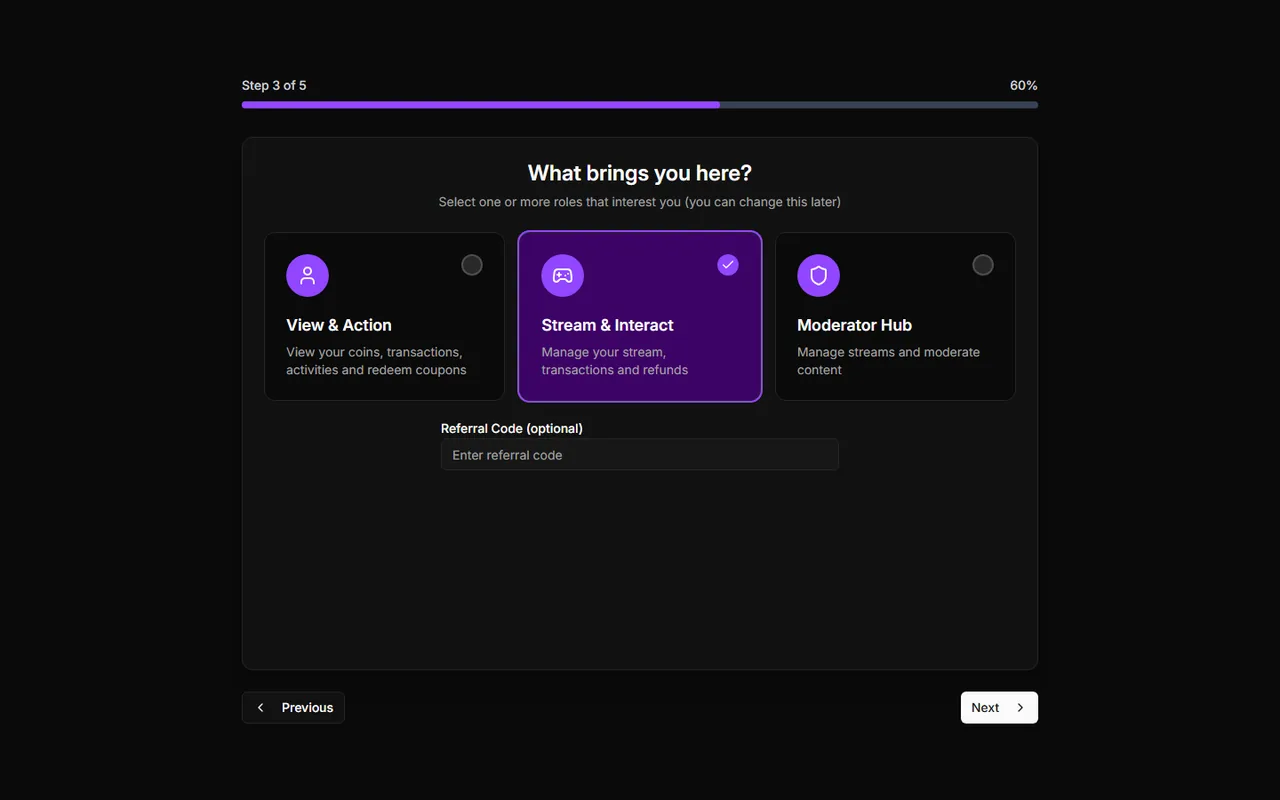
- What brings you here? Select Stream & Interact, because the desktop app needs it. Leave Referral Code (optional) empty if you don't have a code: a wrong one blocks the step.
- Terms & Privacy: tick both boxes.
- Consents: all optional. Click Get Started.
You land on a page with the Getting Started Guide and two cards, Overlays + Sounds and Game Actions + USB. That's normal: this guide only needs the free part.
2. Download and install
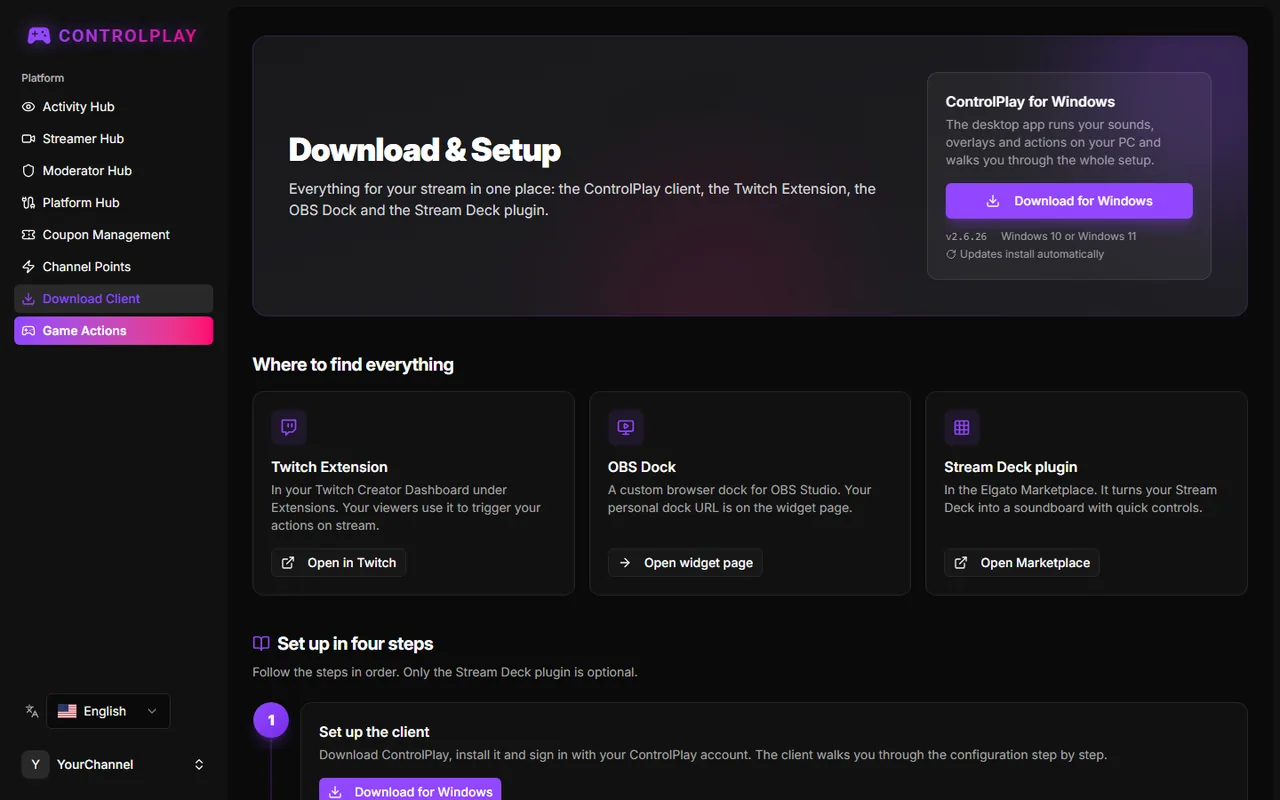
In the sidebar, click Download Client. On the Download & Setup page, click Download for Windows and run the installer. The installer needs no admin rights and starts ControlPlay when it's done. ControlPlay installs its own updates later. Keep the page open.
3. Before you sign in: mic and OBS
Listen to your mic without filters. With headphones on, record a few seconds in the Windows recorder app, or in OBS with your mic filters switched off. With voice effects, ControlPlay takes your mic as it is, without your OBS or Discord filters:
Your mic → ControlPlay → ControlPlay Virtual Mic → OBS and Discord
So your mic has to sound good on its own. If you use a mic app like NVIDIA Broadcast, Wave Link, GoXLR or Voicemeeter, you can pick it as your mic in ControlPlay if the test sounds good. Never pick ControlPlay Virtual Mic as an input inside that same app, or you create a loop and hear echo.
Turn on the WebSocket server in OBS. Open Tools → WebSocket Server Settings, tick Enable WebSocket server and click Apply. Keep Enable Authentication on and leave OBS open.
Stay logged in at controlplay.app in your default browser. The sign-in from ControlPlay only waits about 30 seconds.
4. In ControlPlay: sign in and run the setup wizard
Sign in
Click Sign in with ControlPlay. Your browser opens and shows Login successful! Switch back to ControlPlay.
- Timed out? Click Sign in with ControlPlay again.
- The ControlPlay website opens instead? Your account isn't a streamer account yet. On controlplay.app, click your name at the bottom of the sidebar, then Settings. Under Role, select Stream & Interact, click Save and sign in again.
The setup wizard
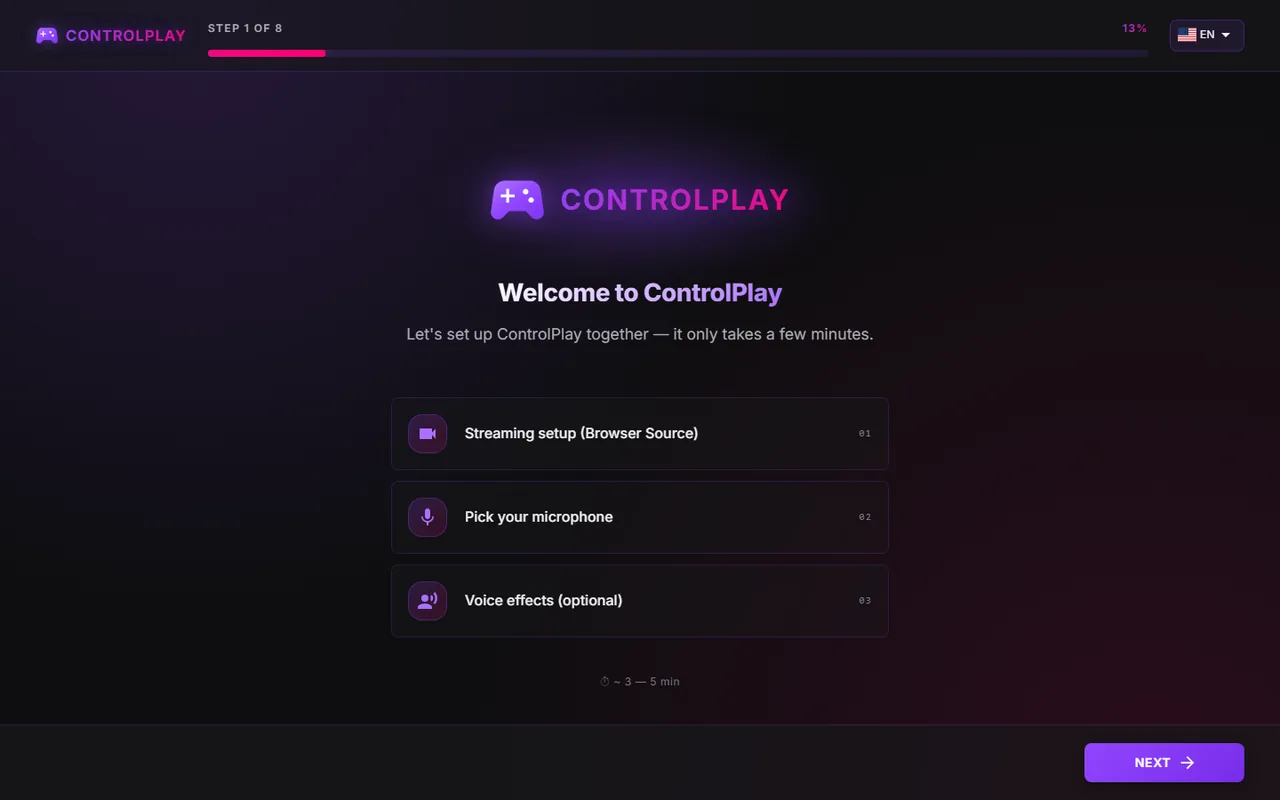
After sign-in, the wizard opens by itself on Welcome to ControlPlay. Click Next after each answer. Its steps depend on your answers. Pick these:
| The wizard asks | Pick |
|---|---|
| How do you stream? | Single PC. With two PCs, pick Dual PC and follow its firewall steps. |
| Which streaming software do you use? | OBS Studio. Other streaming software gives you manual steps. No OBS yet? Pick None / Later and run the wizard again once OBS is installed. |
| Enable WebSocket Server in OBS | Tick I've enabled the WebSocket Server in OBS. |
| Auto-configure OBS | In the OBS WebSocket Server Settings, click Show Connect Info, then Copy next to Server Password. Paste it into Password and click Test connection. |
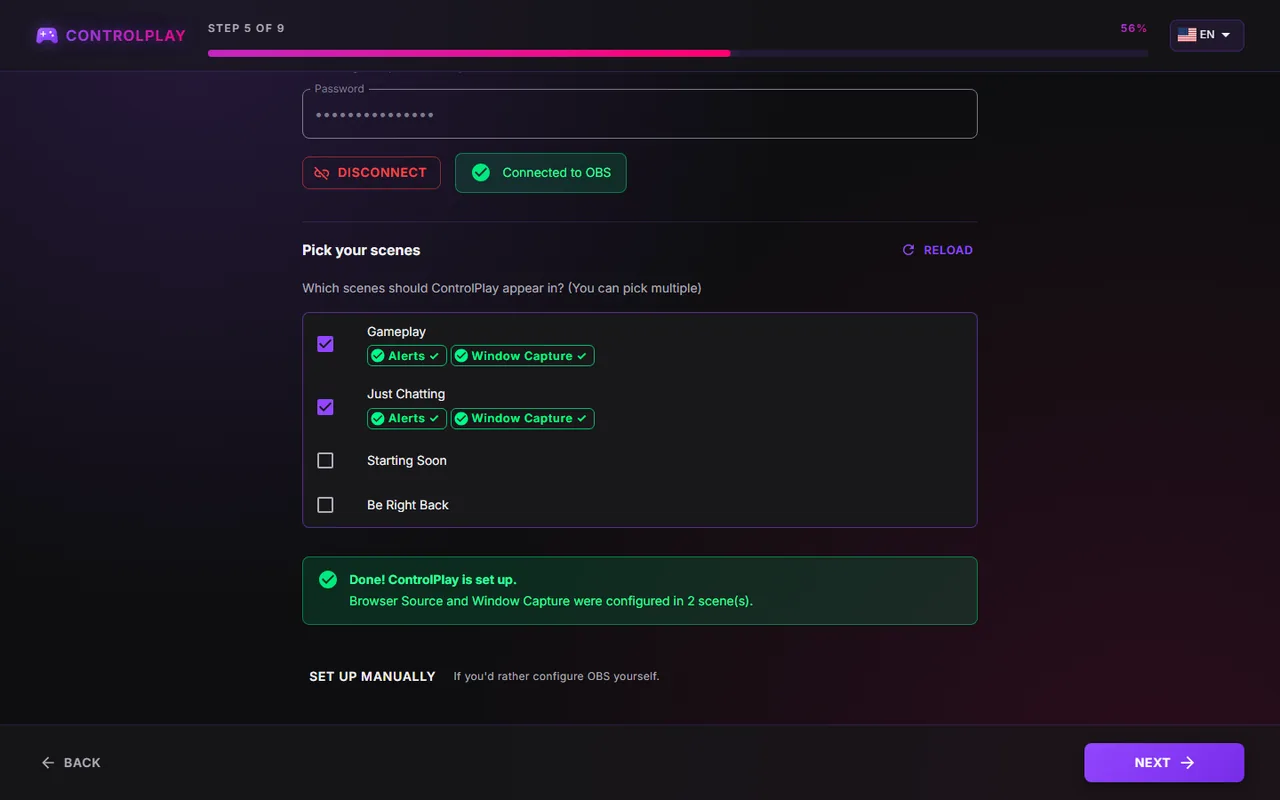
| Pick your scenes | Every scene you go live in, but not Starting Soon or BRB. Then click Configure now. If that fails, use Set up manually. |
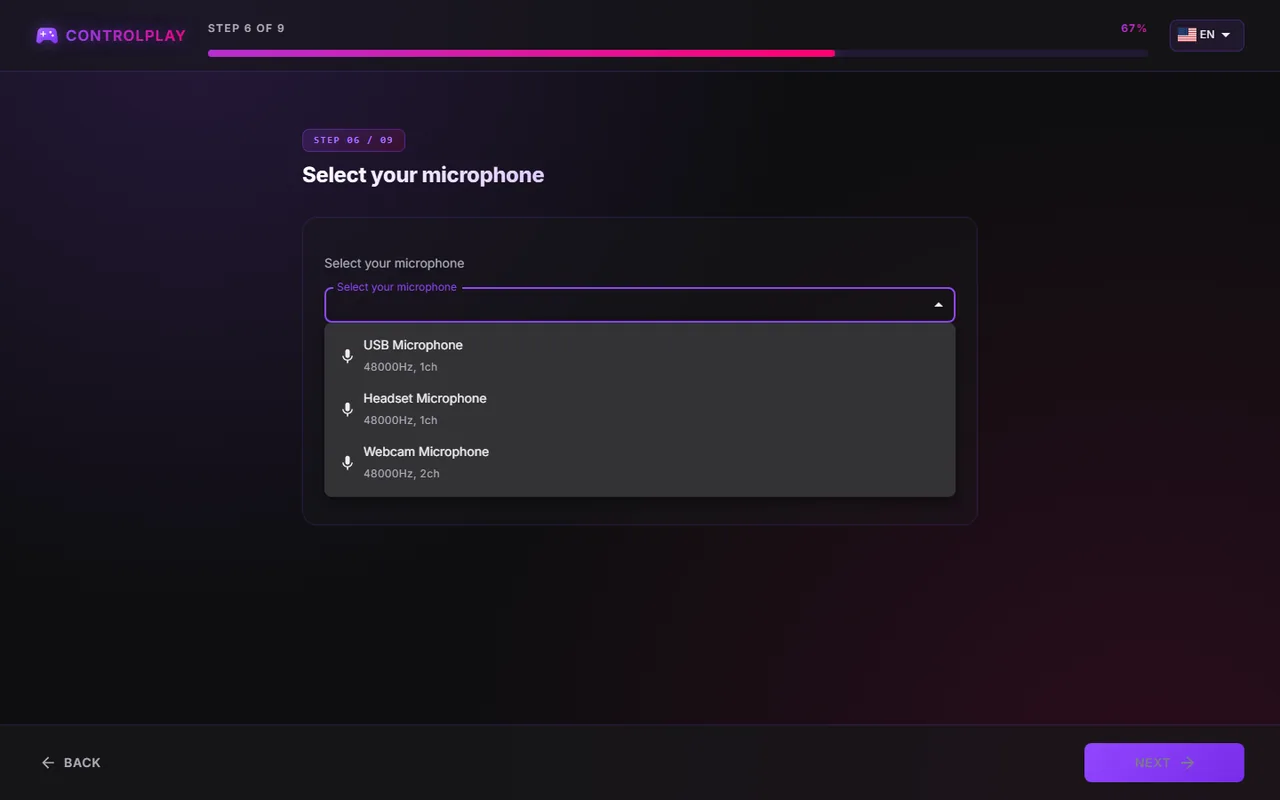
| Select your microphone | The mic you speak into. Leave Stream Audio on System Default. Keep your headphones on, because the tests play your live mic. |
| Voice effects? | See below. |
| You're all set! | Finish. Finishing setup… can take about 20 seconds. |
Four traps:
- Turn on the WebSocket server in OBS first, or the wizard can't reach OBS.
- Hardware window capture not available? Your Windows is older than 11 25H2. Finish the step anyway. Then in OBS, click + under Sources, pick Display Capture, choose your game monitor and drag it above your Game Capture. Show guide in the wizard has the same steps.
- The mic page can't be skipped. If it says No microphones found, plug your mic in, allow microphone access for desktop apps and click Retry. Only your mic is missing from the list? Plug it in, click Back, then Next.
- With voice effects, mute or remove your old mic in OBS, or viewers hear you twice.
Voice effects: yes or no?
- Yes, set it up now: viewers can change your voice. Once Discord uses ControlPlay Virtual Mic, your Discord friends hear every sound and TTS voice you set to Voice Chat. New TTS voices play in Voice Chat (Virtual Mic) by default.
- No, maybe later: keep your OBS mic. Sounds and overlay effects still work on stream, and TTS plays on Speakers (Stream Audio) once your channel has it. Add voice effects later under Settings → Audio → Ghost Voice → Set up now.
With Yes, four short steps follow:
- Click Install Virtual Mic Driver and approve the Windows prompt.
- Click Start microphone check, talk, then click Sounds good!
- Click Test Robot effect, talk, then click Sounds good!
- Set Discord and OBS to ControlPlay Virtual Mic as the wizard shows, click Done, then Next.
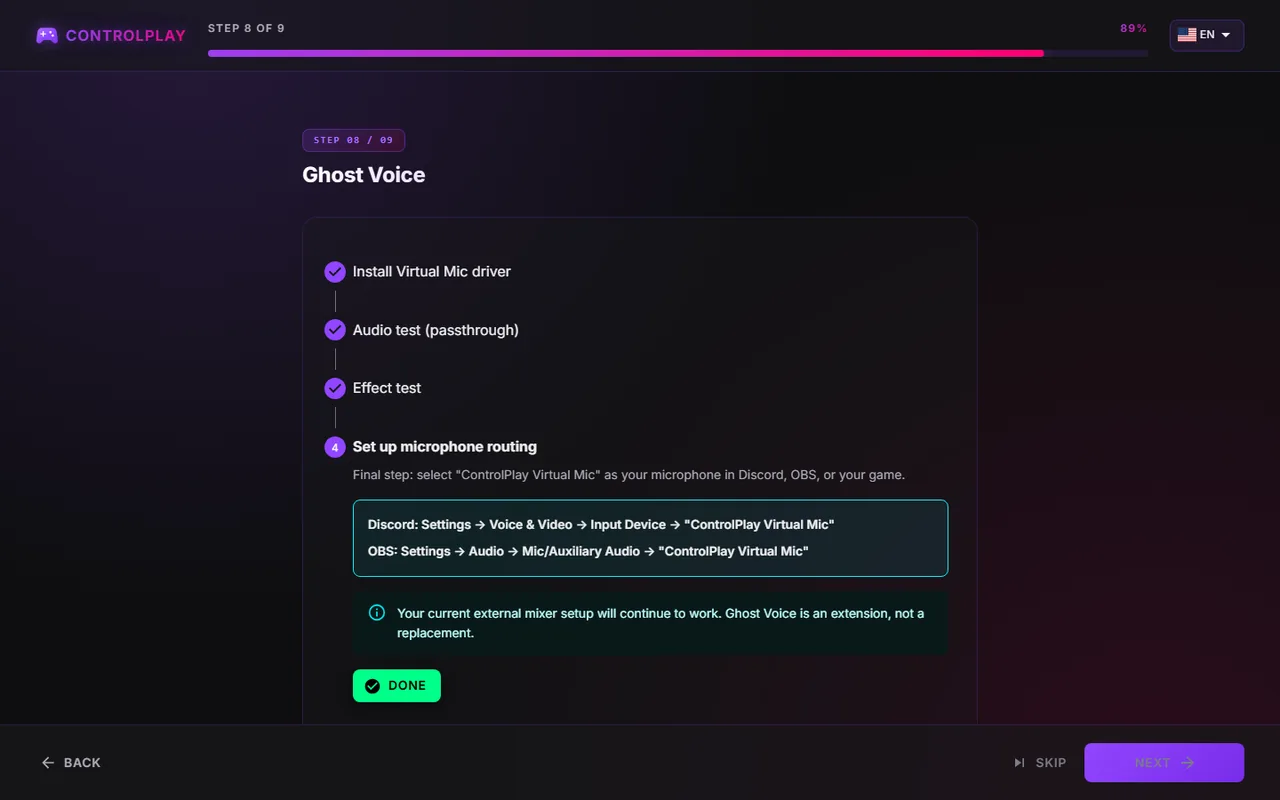
OBS then has to use ControlPlay Virtual Mic as its only mic. ControlPlay picks up your mic before OBS, so OBS filters can't fix it. Filters on that OBS source also process ControlPlay sounds and TTS. If OBS still records your real mic after the driver install, voice-chat TTS reaches Discord, but not your stream.
With voice effects, ControlPlay then asks you to Keep your virtual mic available. Enable recommended makes ControlPlay start with Windows, in the tray, and keep running when you close the window. To quit, right-click the ControlPlay icon next to the clock (click the ^ arrow there if you don't see it) and pick the bottom entry. Do not start automatically is fine if you start ControlPlay yourself before streaming.
5. Check the audio settings
Open Settings with the gear at the bottom of the sidebar, then Audio:
- One headset: leave Monitor off. You still hear sounds and TTS on Stream Audio. Voice-chat sounds, voice-chat TTS and Hear Myself need a Monitor device, so you won't hear those.
- Two outputs, such as speakers and a headset: if OBS records your speakers, set Monitor to your headset. If OBS records your headset, leave Monitor off. Never pick speakers as Monitor, because your mic hears them and you get an echo.
- Stream Audio: keep System Default, which OBS Desktop Audio records. Tests and previews play here.
- Voice Chat: Active means you're done. Not configured means no voice effects yet, and Set up Ghost Voice (Recommended) adds them. Ignore the external mixer setup below it (Set up Ghost-Mic), which is an older method.
Leave everything below these three cards as it is.
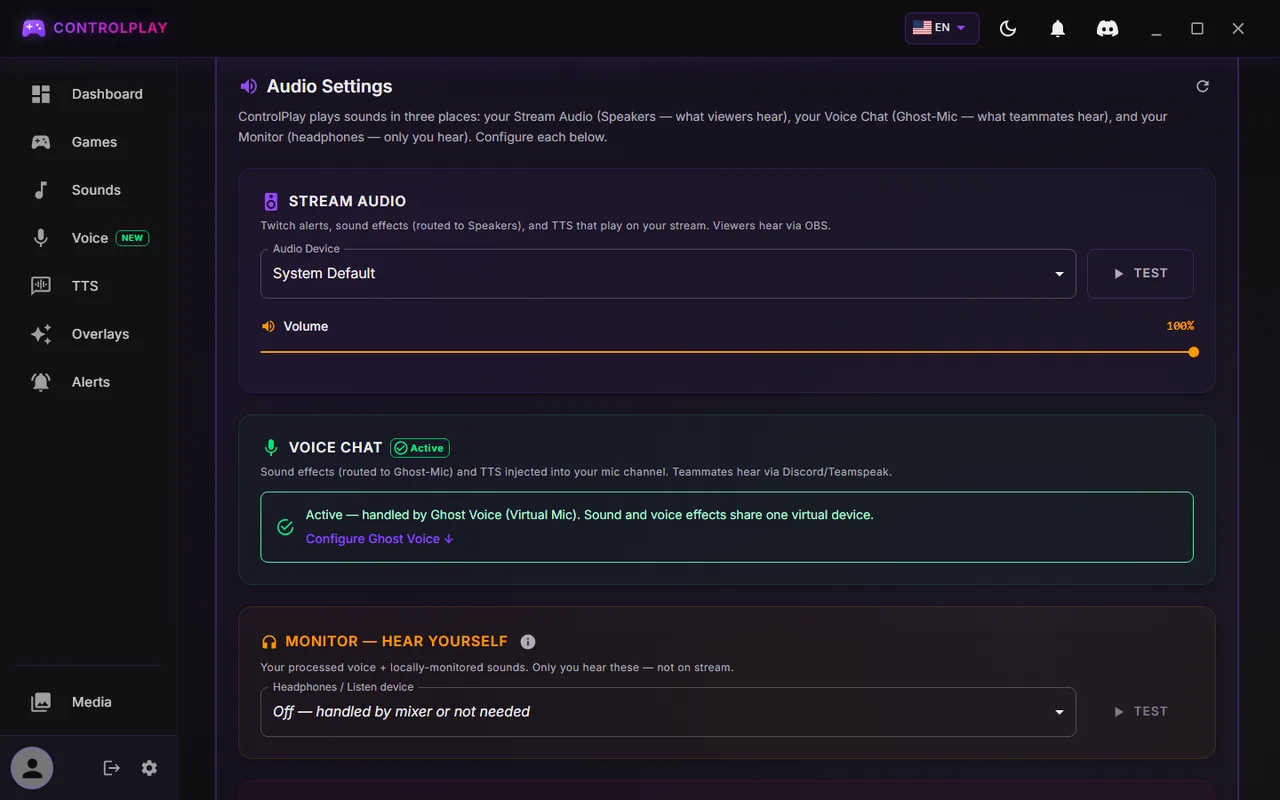
| Output | What plays there | Who hears it |
|---|---|---|
| Stream Audio | Sounds and TTS set to Speakers, tests | You, and viewers through OBS Desktop Audio |
| Voice Chat | Your voice, plus sounds and TTS set to Voice Chat | Discord, and viewers through ControlPlay Virtual Mic in OBS |
| Monitor | Copies just for you, such as Hear Myself | Only you |
Words you'll see: Ghost Voice is ControlPlay's voice feature, and Voice in the sidebar opens its page, Voice Changer. ControlPlay Virtual Mic is the mic it creates for OBS and Discord. Clean Mic means no effect is running.
6. Activate the Extension as Overlay 1
The wizard doesn't do this step, so go back to Download & Setup in your browser:
- At Activate the Twitch Extension as an overlay, click Install Extension and install ControlPlay on Twitch. Accept what Twitch asks for.
- In your Creator Dashboard, open Extensions → My Extensions, click Activate next to ControlPlay and choose Overlay 1. A Panel or Component slot doesn't count.
- Back on Download & Setup, click Check again until you see Active as an overlay on your channel.
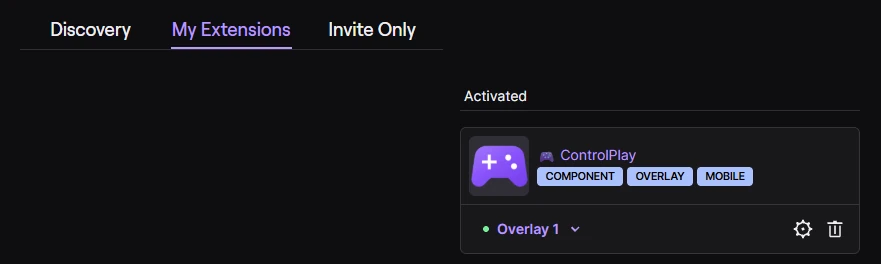
While you're live, viewers see ControlPlay's purple controller on your stream. When they open it, they see your actions, as long as ControlPlay is running. They don't need a ControlPlay account. The promotion guide shows how they open it on desktop and mobile.
7. Give your viewers a way to get Coins
Viewers trigger most actions with Coins, which have no monetary value and can't be transferred. Depending on your channel, there are two separate routes:
- Bits, on eligible Affiliate or Partner channels. Viewers use Bits right in the Extension, either for a permitted direct interaction predefined by ControlPlay or for a Coin package. Twitch asks them to confirm each use. The Twitch monetization guide has the details.
- Channel Points, after Twitch's monetization onboarding, also without Affiliate. Optional rewards convert channel-specific points into Coins at your rate. On controlplay.app, open Channel Points in the sidebar, set up to three rewards and click Create on Twitch. Channel Points have no monetary value. This route creates no revenue and no 80/20 allocation. Change these rewards only there, never on Twitch. The Channel Points without Affiliate guide covers the onboarding.
Neither one yet? Then viewers can open ControlPlay, but they can't trigger anything. Start Twitch's monetization onboarding: it doesn't need Affiliate status and opens the Channel Points route.
8. Add the OBS Dock
We recommend adding the dock:
- On Download & Setup, at Add the OBS Dock, click Open widget page and copy the Widget URL.
- In OBS, open Docks → Custom Browser Docks (OBS 28 and 29: View → Docks → Custom Browser Docks), enter a name, paste the URL and click Apply.
The dock shows every viewer action live, and you can refund an action or pause a viewer. Never add the URL as a Browser Source in a scene, because it contains your authentication token. If it leaked, click Reset Token on the widget page. The optional Stream Deck plugin has its own Stream Deck soundboard guide.
9. Test before your first stream
Test off stream, because the tests play on Stream Audio and viewers would hear them:
- Settings → Audio → Stream Audio → Test: you hear a sound, and the OBS Desktop Audio meter moves.
- Overlays: click Test on Hearts or Snowfall. The effect shows up on your screen and in the OBS preview. On older Windows, OBS only shows it through your Display Capture.
- Alerts → Test in OBS: an alert shows up in the OBS preview, and the ControlPlay Alerts meter moves.
- Talk: your OBS mic meter moves. With voice effects, the meters on the Voice page move too.
- Record 30 seconds in OBS while you repeat tests 1 to 3 and talk. Listen back: every sound once, your voice once, no echo.
- Start a short test stream: a second Twitch account or your phone shows the purple controller with your actions. On mobile, it's the ControlPlay icon near the player.
What to set up next
| What | In ControlPlay | Guide |
|---|---|---|
| OBS by hand, two PCs and older Windows | Settings → Streaming Setup | Add ControlPlay to OBS |
| A clean mic for voice effects and recordings | Settings → Audio | Set Up Your Mic for ControlPlay |
| Game actions with the USB device, including your own | Games | Let viewers control your game |
| Sound effects for viewers | Media, then Sounds | Twitch soundboard setup |
| TTS and its moderation | TTS | Twitch TTS, TTS moderation |
| Your own TTS voice | TTS | Custom TTS voice |
| Voice effects for OBS, Discord and game chat | Voice | Voice changer guide |
| All ControlPlay audio in OBS, once each and without echo | Settings → Audio | OBS audio setup for ControlPlay |
Your stream-day routine
- Start ControlPlay before you go live and let a waiting update install. When ControlPlay shows Installing update..., don't close it and don't restart it yourself. The update runs in the background, and ControlPlay restarts on its own within 30 seconds. If you interrupt it, the update can break and ControlPlay won't work properly afterwards.
- For game actions, plug in the USB device and keep your game in the foreground.
- Turn DND off with the moon icon at the top of ControlPlay, unless you only want items marked DND safe.
- Check once from a second account or your phone that the controller shows up.
Fair play in public matches. ControlPlay isn't a mod and doesn't change game files. Since launch, we haven't heard of anyone getting banned because of ControlPlay, but that's no guarantee: each game's publisher decides what's allowed. Ranked and tournaments are off-limits for ControlPlay, and in public matches, pick short game actions that only affect you. The game control safety FAQ shows how to check a game and its modes.
Something doesn't work?
Look at the LIVE ACTIVITY FEED on the ControlPlay Dashboard or at the OBS Dock first:
- No entry: the action never reached ControlPlay. Check the Extension, the viewer's Coins and whether ControlPlay is running and signed in.
- Green check mark, but nothing on stream: check your OBS sources and audio.
- Failed entry: hover over its icon to see why.
| Problem | Fix |
|---|---|
| Sign-in times out | Log in at controlplay.app first, then sign in again. |
| The website opens instead of Login successful! | On controlplay.app, click your name at the bottom of the sidebar, then Settings. Set Role to Stream & Interact, click Save and sign in again. |
| Stuck on the wizard's mic page | Plug in your mic and allow microphone access for desktop apps. Then click Retry, or Back and Next if other mics are listed. |
| Couldn't reach OBS | Start OBS and turn on its WebSocket server. Wrong password? Copy it again from Show Connect Info. |
| Overlay effects on your screen, but not on stream | On older Windows, add a Display Capture of your game monitor above your Game Capture. Otherwise, ControlPlay Overlay must be in the scene, above your game. More in the OBS setup guide. |
| Overlays says Locked | A game on the Safeguard list is running. For normal matches, open Overlays, scroll down to Safeguard and remove the game under Predefined Titles, as the win challenge guide shows. In ranked, keep ControlPlay off with DND. |
| Viewers hear nothing, or everything twice | Nothing: OBS Desktop Audio must record your Stream Audio device. Twice: OBS also records your Monitor device, so turn Monitor off. More in the OBS audio guide. |
| Your voice is doubled or echoes | Mute or remove your old mic in OBS, and don't use speakers as Monitor. More in the mic guide. |
| Discord doesn't hear ControlPlay sounds or TTS | Set the sound or TTS voice to Voice Chat. Voice Chat in Settings → Audio must say Active, and Discord must use ControlPlay Virtual Mic as input. More in the voice changer guide. |
| Discord hears TTS, the stream doesn't | Set your OBS mic to ControlPlay Virtual Mic, or the TTS voice to Speakers (Stream Audio). |
| Viewers can't see ControlPlay | Go live and check that Download & Setup says Active as an overlay on your channel. |
| Viewers can't trigger anything | They have no Coins yet. Set up Bits or Channel Points, as shown above. |
| Viewers have no sounds to trigger | A fresh install has none. Create a Sound Effect, as the soundboard guide shows. |
| The TTS page is locked | TTS unlocks per channel. The Streamer Hub shows your progress (Game Actions in the sidebar on controlplay.app, under TTS with your own voice), and the Full Experience Package unlocks it right away. |
| Viewers only see some items | DND is on. Click the moon icon. |
| Effects show up on the wrong monitor | Pick your game monitor in the display menu at the top of Overlays. |
| Your TTS voice doesn't sound like you | Record new samples, as the custom TTS voice guide explains. |
| ControlPlay won't close | It keeps running in the tray. Right-click its icon next to the clock (click the ^ arrow there if you don't see it) and pick the bottom entry. |
| ControlPlay acts up after an update | It was probably closed or restarted while the update was installing. Download it again on Download & Setup and run the installer. Next time, wait until ControlPlay restarts on its own. |
Still stuck? Ask on Discord or email [email protected] with your ControlPlay version (Settings → About), your Windows version, a screenshot and your logs (About → Open logs).
Run the setup again
- Settings → General → Run setup wizard again: you can close it anytime, or click one section card to redo only that part.
- Settings → Audio → Ghost Voice → Set up now: voice effects only.
- Settings → Streaming Setup: set up the OBS sources by hand. A red dot means something is still missing.
Go live
Once your test stream works, go live. Tell your chat about the purple controller and add more actions one guide at a time.