ControlPlay sends audio along three paths your stream needs: your Stream Audio device, ControlPlay Virtual Mic and the alerts browser source in OBS. A fourth path, your listen device, is only for you. OBS has to take each of the first three exactly once, and the fourth never. Then nothing is missing on stream, nothing plays twice and nothing echoes.
This page assumes your sounds, TTS voices and alerts already work in ControlPlay. If not, start with the ControlPlay setup guide.
OBS needs to take three ControlPlay audio paths, each exactly once. It takes your Stream Audio device through Desktop Audio (or ControlPlay through an Application Audio Capture (BETA)), ControlPlay Virtual Mic as your only mic, and the alerts browser source. Your listen device stays out of OBS.
No voice effects set up? Then you have no ControlPlay Virtual Mic. Keep your real mic as your only mic in OBS, keep your sounds on Speakers and your TTS voices on Speakers (Stream Audio), and skip the parts about voice chat. You can add voice effects later with Set up now in the Ghost Voice section of Settings → Audio.
Where each ControlPlay sound plays
| Path | What plays there | How OBS takes it |
|---|---|---|
| Stream Audio device | Sound effects set to Speakers, TTS voices on Speakers (Stream Audio), overlay effect sounds, sounds in game actions, many previews and tests | As Desktop Audio, or through an Application Audio Capture (BETA) of ControlPlay |
| ControlPlay Virtual Mic | Your voice and voice effects, sound effects set to Voice Chat, TTS voices on Voice Chat (Virtual Mic) | As your only mic |
| Alerts browser source | The alert sound, except for sound effects, TTS and game actions with a sound | As its own source, once per scene |
| Your listen device | Copies only you hear | Never |
- Previews and tests. They include the play button in Media and Test on a Speakers sound. TTS voice previews (Test voice) and a few other previews play on your Windows default output instead, which Desktop Audio records on Default, so viewers hear them too.
- ControlPlay Virtual Mic. Voice effects, sounds and TTS only get in while Ghost Voice runs. If ControlPlay is open but Ghost Voice isn't running, the virtual mic is silent, even for your voice. Sounds and TTS also need Sounds in Voice Chat, a switch in the Ghost Voice section of the audio settings that is on by default.
- Alert sound. It comes with overlay effects (with or without their own sound), voice effects and game actions that have no sound. Sound effects and TTS play only their own sound.
One headset or two outputs
In ControlPlay, open Settings with the gear at the bottom of the sidebar, then Audio. On the Monitor card, Headphones / Listen device sets your listen device. It plays your voice with Hear Myself on the Voice page, and during voice effects with Hear myself when triggered, which is on for every effect by default. Sounds and TTS in voice chat only play there if you switch them on: Audible for me for a sound effect, Hear it myself for a TTS voice. Both are off by default. OBS must never record this device, or viewers hear those copies too.
- One headset. Pick the Off entry at the top of the list. You then only hear what ControlPlay plays on your Stream Audio device, which is your headset. You won't hear your voice through ControlPlay, sounds and TTS in voice chat, or alert sounds. Check those in a local recording instead (see below). With way 1 (Desktop Audio, see below), don't switch on OBS monitoring for them either: OBS could send the same sound to your stream a second time.
- Two outputs. With speakers and a headset, or a mixer with a separate headphone channel, pick the output OBS doesn't record. If that's speakers on your desk, pick the Off entry instead, or your mic picks them up and you get echo.
- Way 2 below (Application Audio Capture). Always pick the Off entry: that source also records what ControlPlay plays on your listen device.
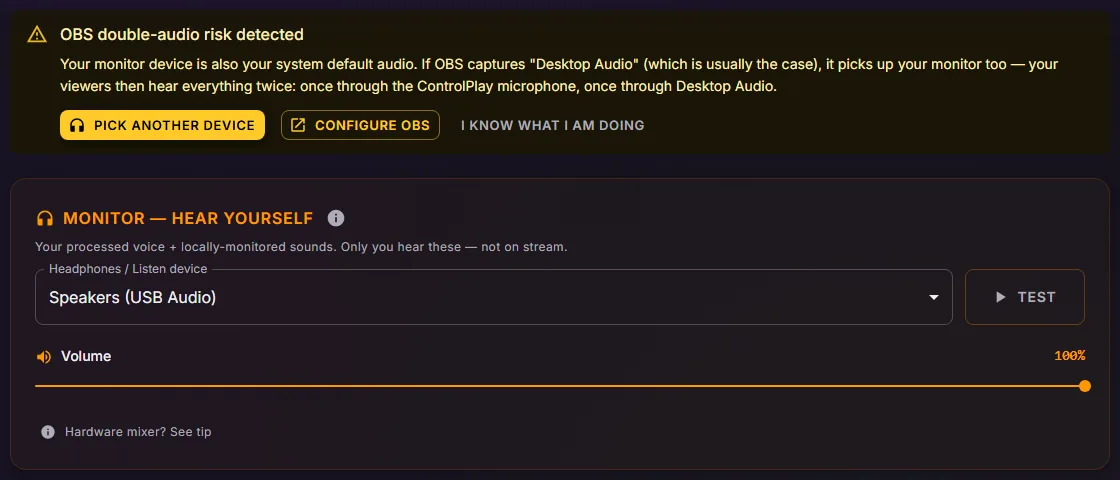
Don't rely on OBS double-audio risk detected: it only compares your listen device with your Windows default playback device and can't see your OBS sources. Check yourself that neither Desktop Audio, Desktop Audio 2 nor any source in OBS records your listen device.
Get your Stream Audio into OBS
What ControlPlay plays on your Stream Audio device may reach OBS one way only. Either OBS records that device (way 1), or OBS captures ControlPlay itself (way 2). Never use both, or viewers hear these sounds twice. A mixer's stream mix that carries this device, for example on a GoXLR or in Wave Link, counts as way 1.
Way 1: Desktop Audio
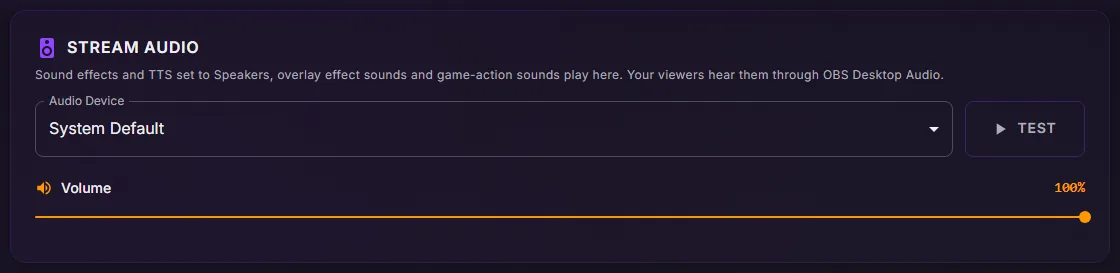
- In ControlPlay, open Settings → Audio. On the Stream Audio card, leave Audio Device on System Default, your Windows default output.
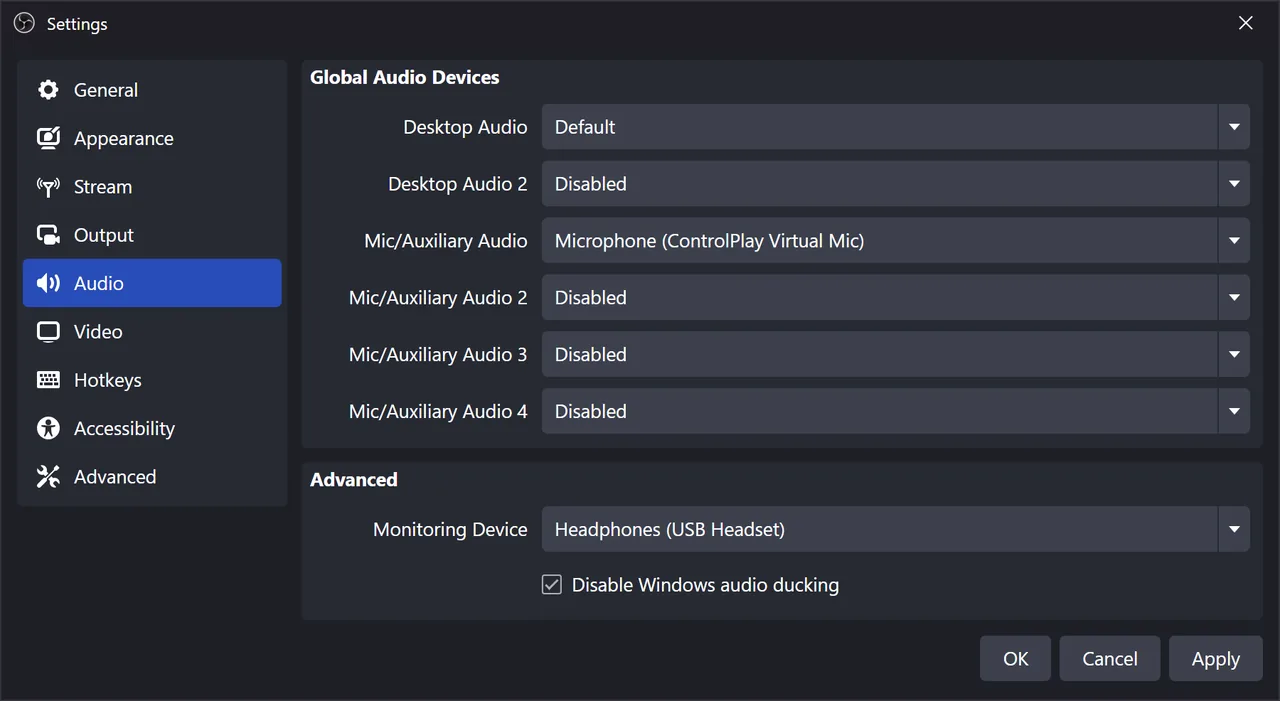
- In OBS, open Settings → Audio. Under Global Audio Devices, set Desktop Audio to Default and click OK. Both defaults follow Windows. If you picked a specific device in ControlPlay, pick the same one here.
- While you're not live, open Media in ControlPlay and play one of your sounds. The Desktop Audio meter in the OBS Audio Mixer moves. Test on the Stream Audio card only plays a short beep.
Way 2: Application Audio Capture
Use this way only if nothing in OBS records your Stream Audio device, not even a mixer's stream mix. That's usually the case when Desktop Audio stays on Disabled because you add your game and other apps one by one. It needs Windows 10 version 2004 or newer.
- Open the ControlPlay window. OBS only finds ControlPlay while its window is open or minimized to the taskbar, not while it sits in the system tray. If ControlPlay starts or closes to the tray, for example after Enable recommended during setup, double-click its icon next to the clock before every stream and minimize the window instead of closing it.
- In OBS, under Sources, click + and pick Application Audio Capture (BETA). Name it ControlPlay and click OK.
- Set Window to [ControlPlay.exe]: ControlPlay, not ControlPlay Overlay. Set Window Match Priority to Match title, otherwise find window of same executable and click OK.
- Add this source to every other scene you stream from: select the scene, click +, pick Application Audio Capture (BETA), select ControlPlay under Add Existing and click OK. Don't create a second one.
- In ControlPlay, set Headphones / Listen device on the Monitor card to the Off entry. Unlike Desktop Audio, this source isn't tied to your default device: it records everything ControlPlay plays on any output device, except ControlPlay Virtual Mic. So any listen device would put your voice and the sounds and TTS in voice chat on stream a second time. To hear yourself through ControlPlay, use way 1 with a listen device OBS doesn't record.
- While you're not live, play one of your sounds in Media. The meter of your ControlPlay source in the Audio Mixer moves.
![OBS properties of an Application Audio Capture source: Window [ControlPlay.exe]: ControlPlay, Window Match Priority on Match title, otherwise find window of same executable](/images/guides/controlplay-obs-audio/en/obs-app-audio.webp)
Your Audio Device on the Stream Audio card can stay on System Default: you hear your sounds there, and the source takes them straight from ControlPlay. It also takes every preview and test, so only test while you're not live.
Use one microphone in OBS
Your voice, voice effects and everything ControlPlay plays in voice chat reach OBS through ControlPlay Virtual Mic, so start ControlPlay before you go live. No voice effects set up? Then keep your real mic as your only mic in OBS and skip this section.
Make ControlPlay Virtual Mic your only mic in OBS:
- In OBS, open Settings → Audio. Set Mic/Auxiliary Audio to ControlPlay Virtual Mic, as the setup wizard shows. In the list, it's called Microphone (ControlPlay Virtual Mic).
- If your real mic is in another row, such as Mic/Auxiliary Audio 2, set that row to Disabled. Click OK. In the Audio Mixer, your mic now shows up as Mic/Aux.
- In the Sources dock, right-click each Audio Input Capture source and pick Properties to see which mic it records. Remove those that record your real mic or ControlPlay Virtual Mic, in every scene.
Instead of step 1, you can set Mic/Auxiliary Audio to Disabled and, after step 3, add one Audio Input Capture source for ControlPlay Virtual Mic. In every other scene you talk in, add that same source under Add Existing. Wherever this page says Mic/Aux, use that source instead. Never use Mic/Auxiliary Audio and this source at once, or viewers hear you twice.
Filters on ControlPlay Virtual Mic in OBS also change your voice effects and the sounds and TTS in voice chat. Keep them light, and fix your sound at the mic itself, for example with its gain or in its own app: ControlPlay takes your voice before OBS does.
Alert sounds come from the browser source
Alert sounds don't play on your Stream Audio device. The alerts browser source plays them inside OBS. If the setup wizard added it, it's called ControlPlay Alerts. In the Sources dock, right-click it and pick Properties: Control audio via OBS must be ticked. The setup wizard ticks it for you whenever you click Configure now on its Auto-configure OBS page. This option gives alert sounds their own meter in the Audio Mixer, where you can turn them down or mute them. No alerts source yet? The OBS setup guide adds it.
Since alert sounds only go to OBS, you don't hear them yourself. If you have headphones that OBS doesn't record, you can listen to them there:
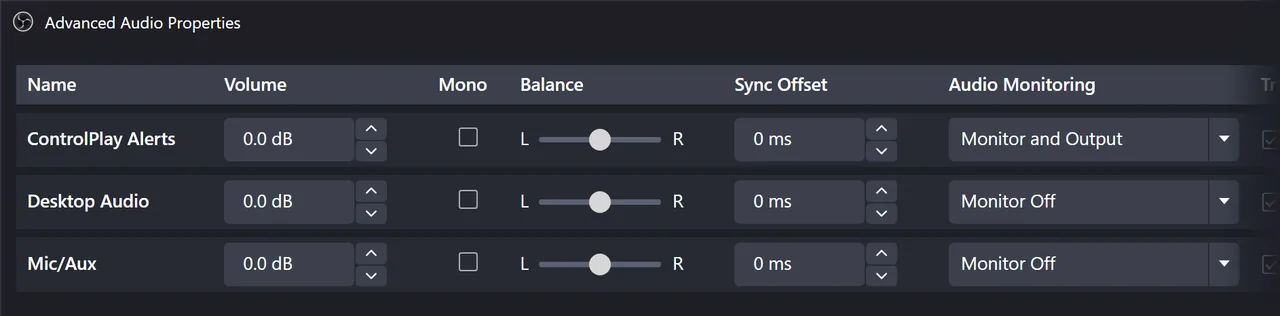
- In OBS, open Settings → Audio. Under Advanced, set Monitoring Device to those headphones and click OK.
- Open Edit → Advanced Audio Properties.
- In the Audio Monitoring column, set ControlPlay Alerts to Monitor and Output. Keep Desktop Audio (or your ControlPlay source) and Mic/Aux on Monitor Off.
With one headset and way 1, skip these steps, or viewers could hear the alerts twice.
An alert sound plays twice on stream? Look for a second alerts browser source in your live scene, or a Monitoring Device that OBS also records.
Your custom alert sound doesn't play? If it's larger than 2 MB, a built-in sound plays instead.
TTS and sounds in voice chat
You set the route for each sound and each TTS voice:
- Sound effects. On Sounds, click the pencil icon on a sound. Under Audio Output, pick Speakers or Voice Chat. More in the soundboard guide.
- TTS voices. On TTS, click the pencil icon on a voice. Under Audio routing, pick Speakers (Stream Audio) or Voice Chat (Virtual Mic). More about TTS voices in the TTS guide.
Voice Chat plays into ControlPlay Virtual Mic, so OBS only gets it if OBS uses ControlPlay Virtual Mic as its mic. If OBS still records your real mic, these sounds and TTS can reach Discord, but not your stream.
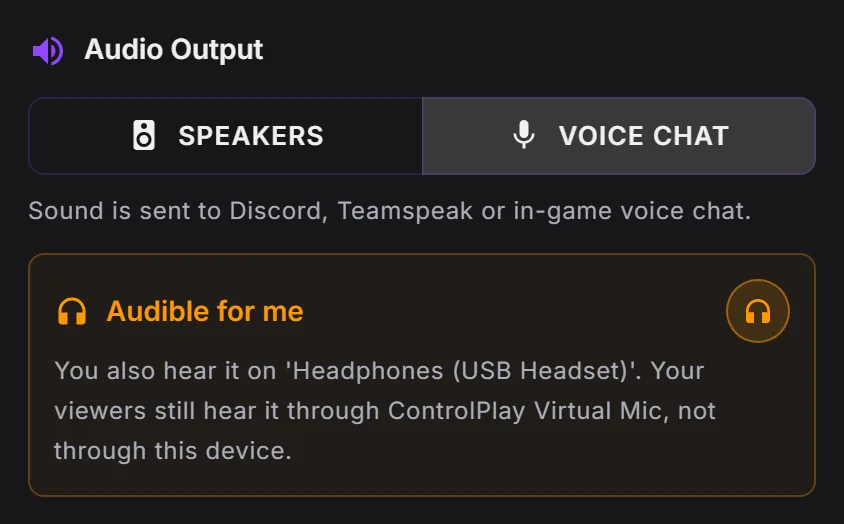
To hear them yourself, switch on Audible for me for a sound or Hear it myself for a TTS voice. This needs a listen device that OBS doesn't record. With way 2, leave both off: your ControlPlay source would put the copy on stream too.
Mute mic during TTS playback on the TTS page is on by default. While a TTS voice plays in voice chat, it mutes your voice in ControlPlay Virtual Mic, so Discord and viewers hear the TTS alone. Switch it off there, or for a single voice: click the pencil icon on the voice and set Mute mic during TTS playback to Off. TTS on Speakers (Stream Audio) never mutes you.
More on Discord and game chat in the voice changer guide.
Test with a local recording
Test while you're not streaming: every test below would go on stream if you were live. In OBS, click Start Recording. While you go through this list, each sound should move exactly one meter in the Audio Mixer: ControlPlay Alerts, Desktop Audio (or your ControlPlay source) or Mic/Aux.
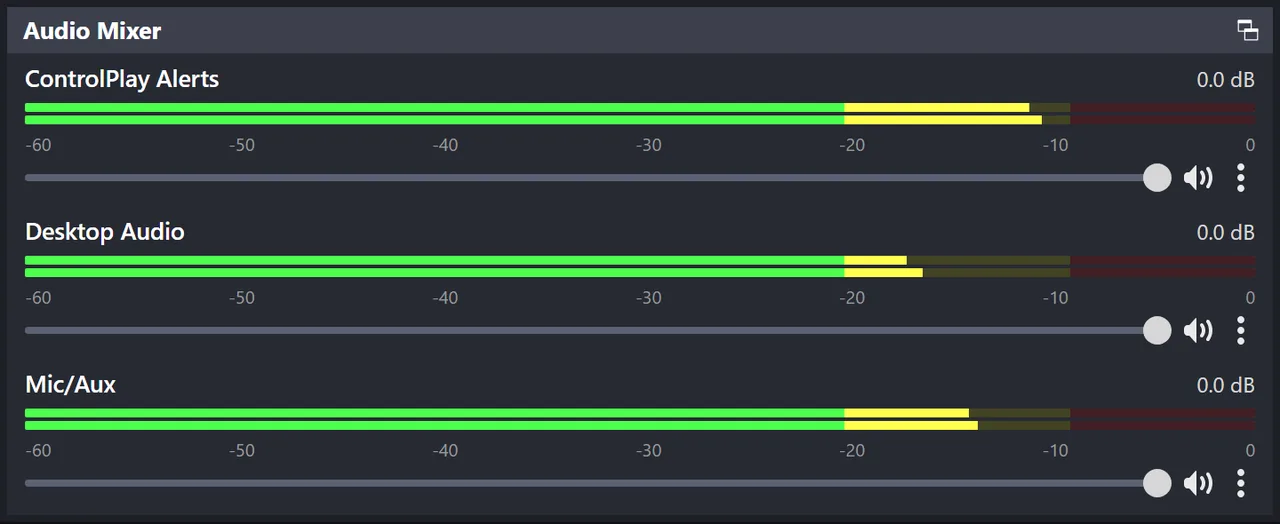
- Talk for a few seconds.
- On Voice, click a voice effect card such as Robot, talk, then click Clean Mic.
- On Sounds, click Test in OBS on a sound set to Voice Chat. With Audible for me on, the button says Test. To hear it yourself, use Audible for me (not with way 2), never OBS monitoring on Mic/Aux.
- Click Test on a sound set to Speakers.
- On Overlays, click Test on an effect with a sound, such as Smoke Grenade. It plays its sound, but no alert.
- On Alerts, click Test in OBS under Preview.
TTS isn't on this list, because no test plays a TTS voice on its route: Test voice never plays in ControlPlay Virtual Mic. You check TTS when the first TTS messages come in (see the end of this page).
Click Stop Recording, then open File → Show Recordings and play the newest file with headphones on: your voice once, every sound once, no echo.
Your recording sounds like your stream as long as both use the same audio track, which is how OBS starts out.
Fix common problems
| Problem | What to do |
|---|---|
| Viewers don't hear sounds on Speakers or TTS on Speakers (Stream Audio) | With way 1, Desktop Audio must record the device under Audio Device on the Stream Audio card and mustn't be muted in the Audio Mixer. With way 2, your ControlPlay source must be in your live scene and not muted. |
| Viewers don't hear sounds or TTS in voice chat | OBS must use ControlPlay Virtual Mic. Turn on Sounds in Voice Chat in the Ghost Voice section: while it's off, viewers can't even pick these sounds and voices. Without the USB device, set Mode under Voice Chat Settings to Automatic (without ControlPlay hardware). |
| Sounds or TTS play twice | What ControlPlay plays on your Stream Audio device may reach OBS one way only: through Desktop Audio (or a mixer's stream mix) or through your ControlPlay source, never both. Set Desktop Audio 2 to Disabled if it records the Stream Audio device too, and remove an extra Audio Output Capture of that device or a second Application Audio Capture (BETA) of ControlPlay. Right-click ControlPlay Overlay in Sources, pick Properties and untick Capture Audio (BETA). Keep your listen device out of OBS. With way 2, pick the Off entry. |
| Your voice is doubled or phasey | Keep one mic in OBS. Doubled only during voice effects? OBS records the device that Hear myself when triggered plays on, so pick another listen device or the Off entry. With way 2, always pick the Off entry. |
| No voice on stream at all | Start ControlPlay if it's closed. A red banner on Voice means ControlPlay Virtual Mic is silent: click its button, usually Try again. Check that Mic/Aux isn't muted in the Audio Mixer. |
| Your ControlPlay source stays silent (way 2) | OBS only finds ControlPlay while its window is open or minimized to the taskbar. Was ControlPlay in the system tray or closed when OBS started? Open the ControlPlay window (start ControlPlay, or double-click its icon in the system tray), and the sound is back within a few seconds. Also check that Window says [ControlPlay.exe]: ControlPlay and that the source isn't muted. |
| Discord doesn't hear sounds or TTS | Set sounds to Voice Chat, TTS voices to Voice Chat (Virtual Mic) and Discord's input to ControlPlay Virtual Mic. More in the voice changer guide. |
| No alert sound on stream | Normal for sound effects, TTS and game actions with a sound. Otherwise, on Alerts under Sound Settings → Sound per Bit Tier, check that no tier is set to Off and the Volume isn't all the way down. Also check that ControlPlay Alerts has Control audio via OBS ticked in its Properties and isn't muted in the Audio Mixer. |
| Your voice drops while TTS plays | That's Mute mic during TTS playback. Switch it off on the TTS page, or set it to Off for a single voice with the pencil icon. |
| An overlay sound is too loud or too quiet | On Overlays, click the pencil icon on the effect and change its Volume. The Volume on the Stream Audio card doesn't change overlay or alert sounds. |
| You hear an echo of yourself | Set Mic/Aux to Monitor Off under Edit → Advanced Audio Properties. Never use desk speakers as your listen device: your mic picks them up. |
Go live
Every sound once and your voice without echo? Then start a short test stream and watch it from a second account or your phone, as the ControlPlay setup guide shows. After that, you're ready to go live. Keep an eye on the Audio Mixer when the first TTS messages come in: a TTS voice on Voice Chat (Virtual Mic) moves Mic/Aux, one on Speakers (Stream Audio) moves Desktop Audio (or your ControlPlay source), and each message should play once.