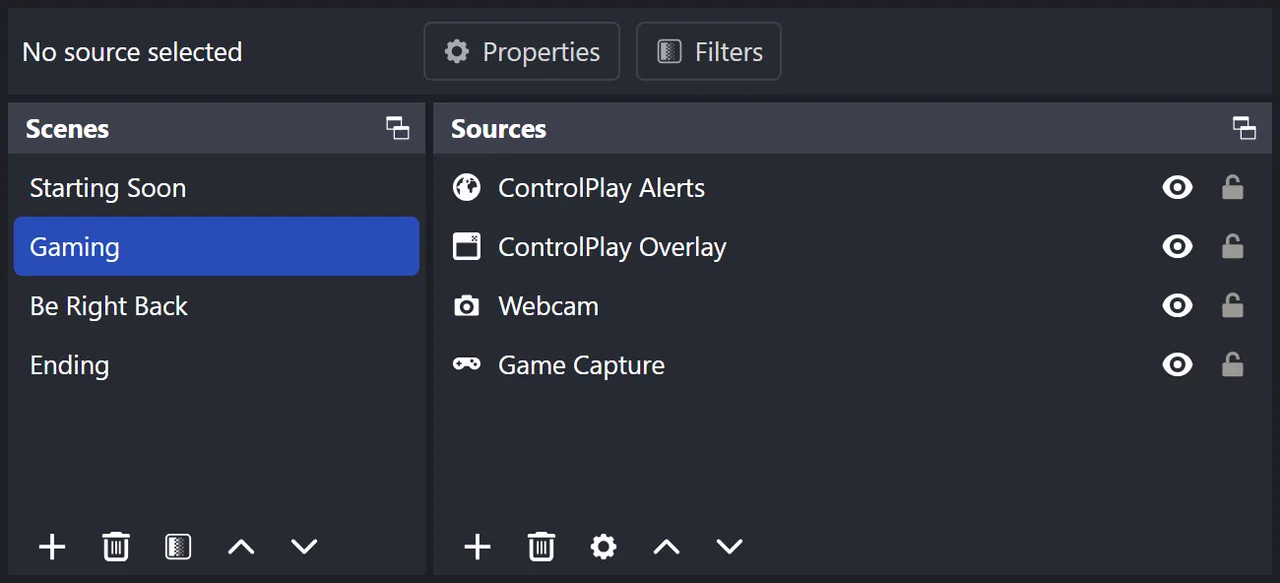
ControlPlay needs two sources in OBS. ControlPlay Alerts is a Browser Source: it shows alert banners and plays alert sounds when viewers trigger actions. ControlPlay Overlay is a Window Capture: it shows overlay effects like Snowfall or Smoke Grenade over your game. The setup wizard can add both for you. If ControlPlay isn't installed yet, start with the ControlPlay setup guide.
Sound effects from the Sounds page, TTS and voice effects reach OBS as audio, not through these two sources. The soundboard guide shows how OBS picks up ControlPlay sounds. The OBS audio guide shows how OBS takes each of them exactly once. The Twitch Extension runs in the Twitch player, not in OBS. Never add the OBS Dock's URL to a scene, because it contains your personal token.
ControlPlay sets up OBS for you. The setup wizard adds ControlPlay Alerts and, on one PC with Windows 11 version 25H2 or newer, ControlPlay Overlay to every scene you pick. ControlPlay also refreshes the alerts source each time it starts.
Let the setup wizard configure OBS (recommended)
You need OBS Studio 28 or newer, running on the same PC as ControlPlay. Two PCs? See the section further down.
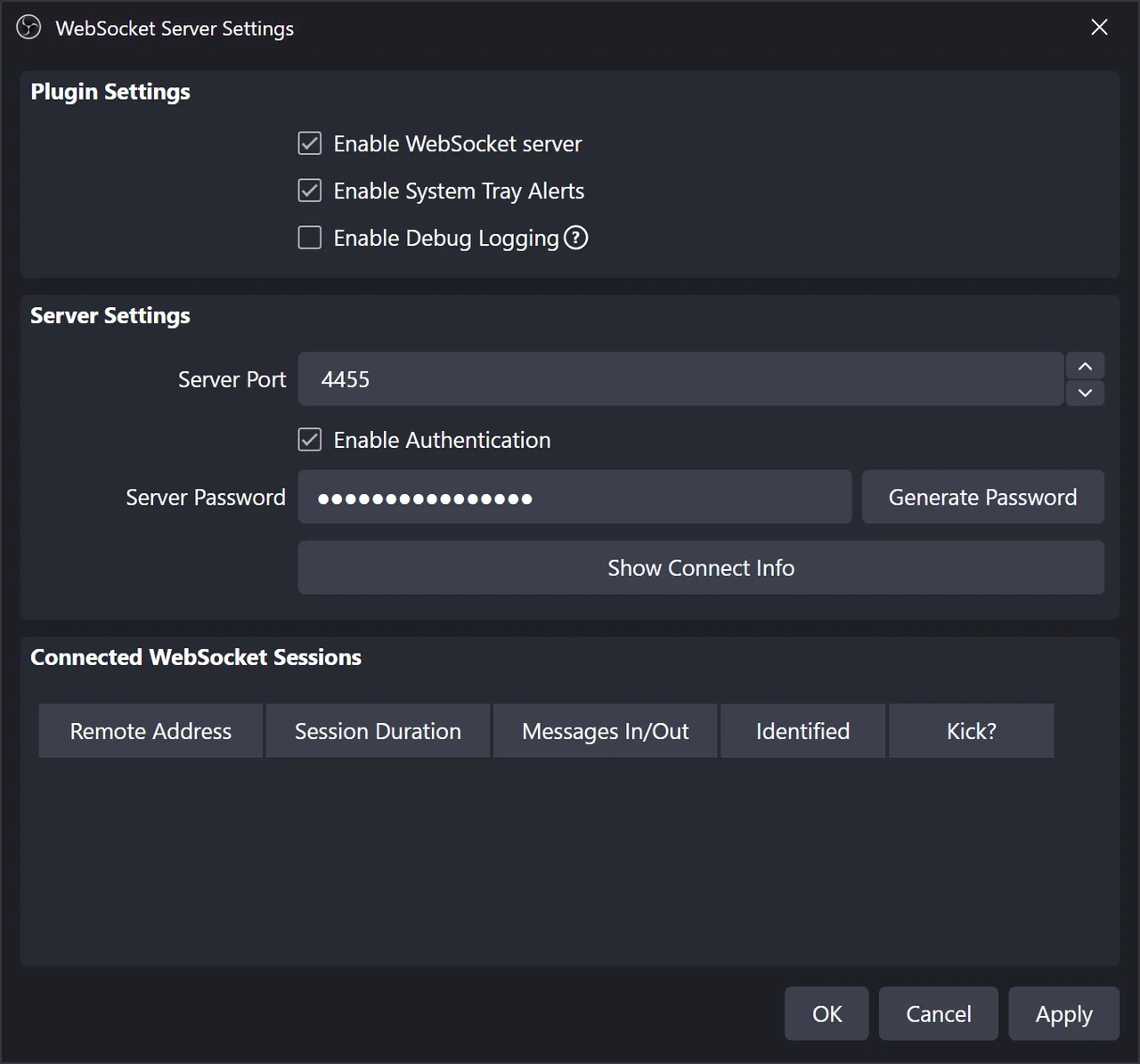
- In OBS, open Tools → WebSocket Server Settings.
- Tick Enable WebSocket server and click Apply. Keep Enable Authentication on, so nobody else on your network can control OBS.
- Open the wizard in ControlPlay. After your first sign-in, it starts by itself: click Next on Welcome to ControlPlay. Later, go to Settings → General, click Run setup wizard again and then the Streaming setup (Browser Source) card.
- Under How do you stream?, pick Single PC and click Next.
- Under Which streaming software do you use?, pick OBS Studio, the card with the Auto-Setup badge, and click Next.
- Tick I've enabled the WebSocket Server in OBS and click Next.
- In the OBS WebSocket Server Settings, click Show Connect Info, then Copy next to Server Password.
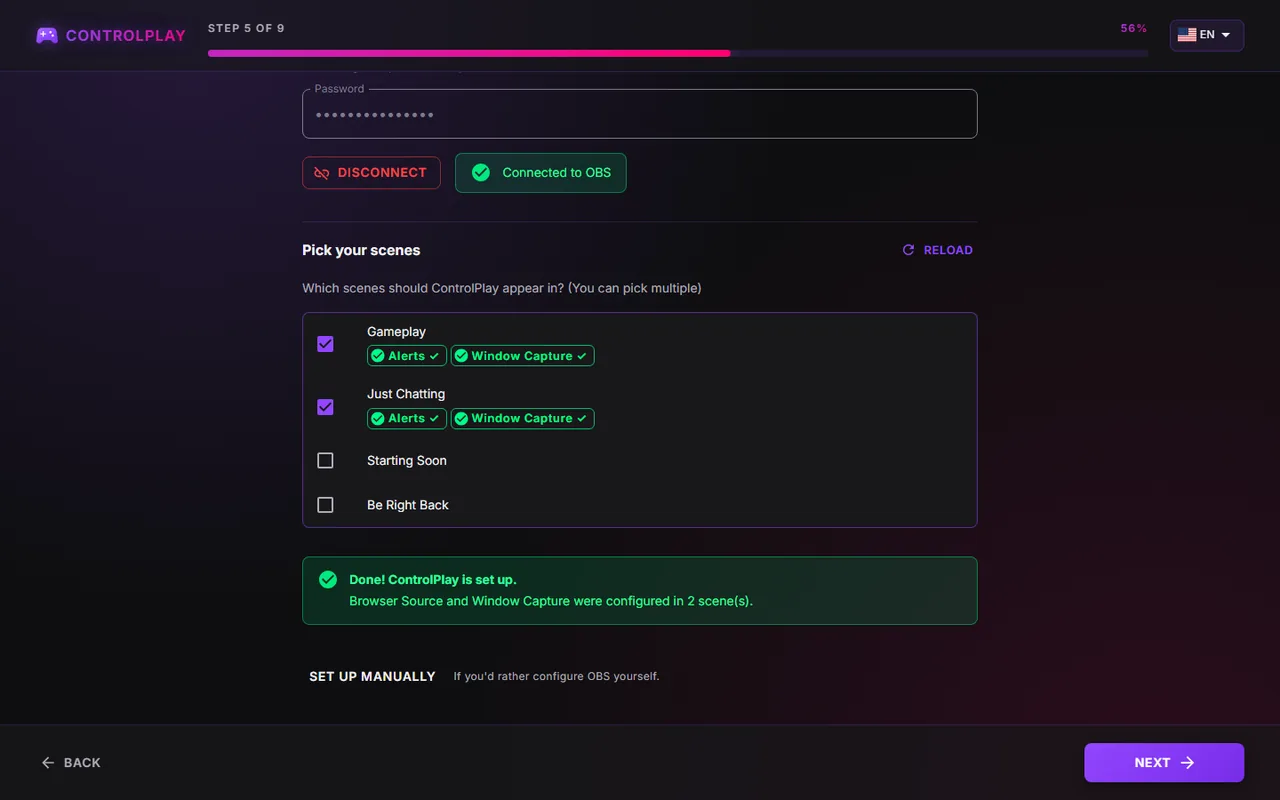
- Back in ControlPlay, on Auto-configure OBS, paste it into Password and click Test connection. You see Connected to OBS and a list of your scenes.
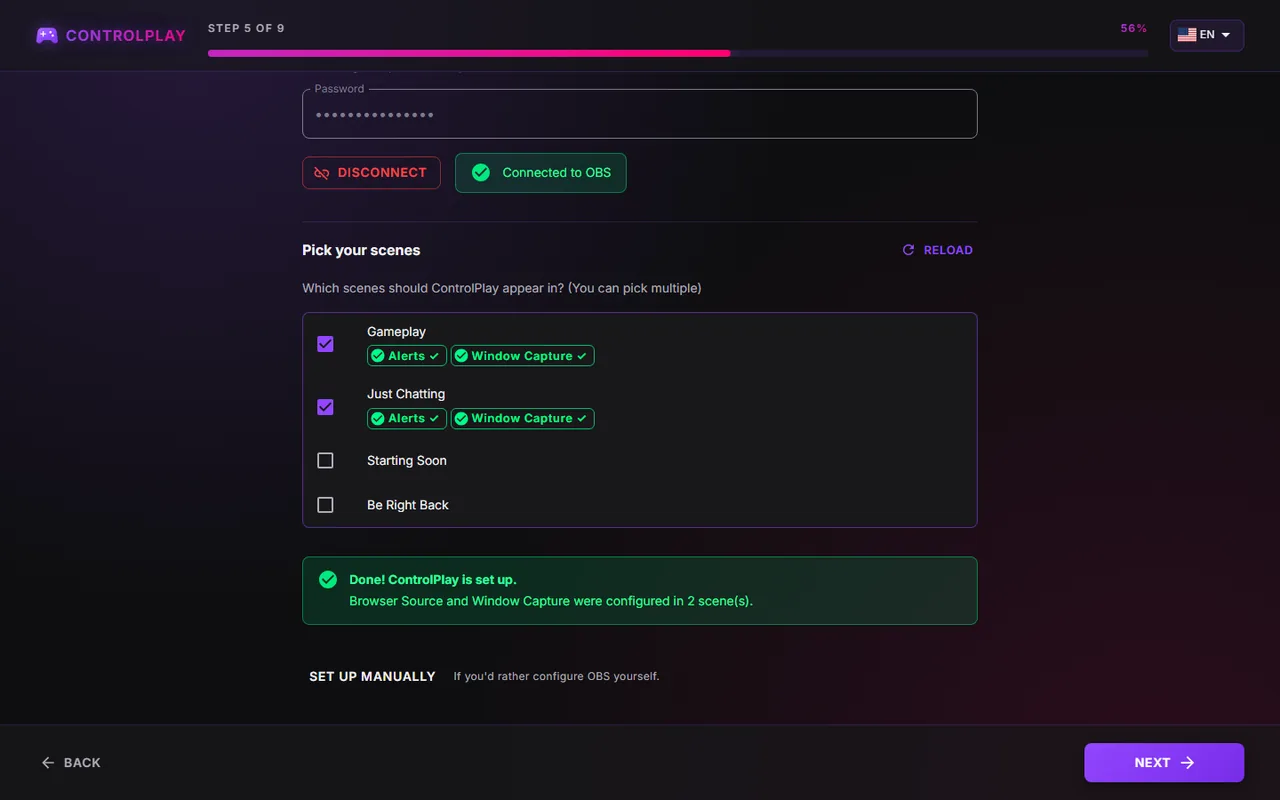
- Under Pick your scenes, tick every scene you play in. The scene that's open in OBS right now is already ticked. Untick it if it's a Starting Soon or BRB scene.
- Click Configure now. When Done! ControlPlay is set up. appears, click Next. The wizard then goes on with your microphone, as the setup guide shows.
If the wizard shows Some scenes could not be configured, click Configure now again. If it says Connection to OBS lost, start OBS, click Test connection and then Configure now. If it keeps failing, click Set up manually.
Added a scene later? Open the wizard again as in step 3 and click Next until Auto-configure OBS. If your scenes don't show, paste the password and click Test connection as in step 8. Then tick the new scene and click Configure now.
What the wizard adds, and where it goes
| Source | Type | What it shows | Settings |
|---|---|---|---|
| ControlPlay Alerts | Browser Source | Alert banners and alert sounds | URL http://localhost:48080/overlay, 800 × 1080, Control audio via OBS and Refresh browser when scene becomes active ticked |
| ControlPlay Overlay | Window Capture | Overlay effects | Window [ControlPlay.exe]: ControlPlay Overlay, capture method Windows 10 (1903 and up), Window title must match |
The wizard adds ControlPlay Overlay only on one PC with Windows 11 version 25H2 or newer. If you already added ControlPlay sources by hand, the wizard reuses them instead of adding copies.
After every wizard run, open each scene in OBS and check three things:
- Order. ControlPlay Alerts at the top, ControlPlay Overlay below it, then your game capture. OBS draws the top source in front, so a game capture higher up hides ControlPlay. If ControlPlay Alerts ended up under your game, drag it back to the top.
- Position. The wizard doesn't move or resize anything. Alerts appear at the top center of the ControlPlay Alerts box, so drag that box in the OBS preview to where you want them.
- Size. If your monitor's resolution differs from your OBS canvas, right-click ControlPlay Overlay and pick Transform → Fit to screen, so the effects line up with your game.
In your game's display settings, pick borderless windowed or windowed instead of exclusive fullscreen. In exclusive fullscreen, overlay effects can't show over your game.
Set it up by hand
Use this path if you prefer to do it yourself or the wizard can't reach OBS. In the wizard, click Set up manually on Auto-configure OBS. Outside the wizard, Settings → Streaming Setup has the same steps.
Alerts: the Browser Source
- On Browser Source URL, click Copy URL to continue, then Next. On one PC, the URL is usually
http://localhost:48080/overlay. - In OBS, click + under Sources, pick Browser and name it ControlPlay Alerts.
- Paste the URL and set Width to 800 and Height to 1080.
- Tick Control audio via OBS and Refresh browser when scene becomes active, then click OK.
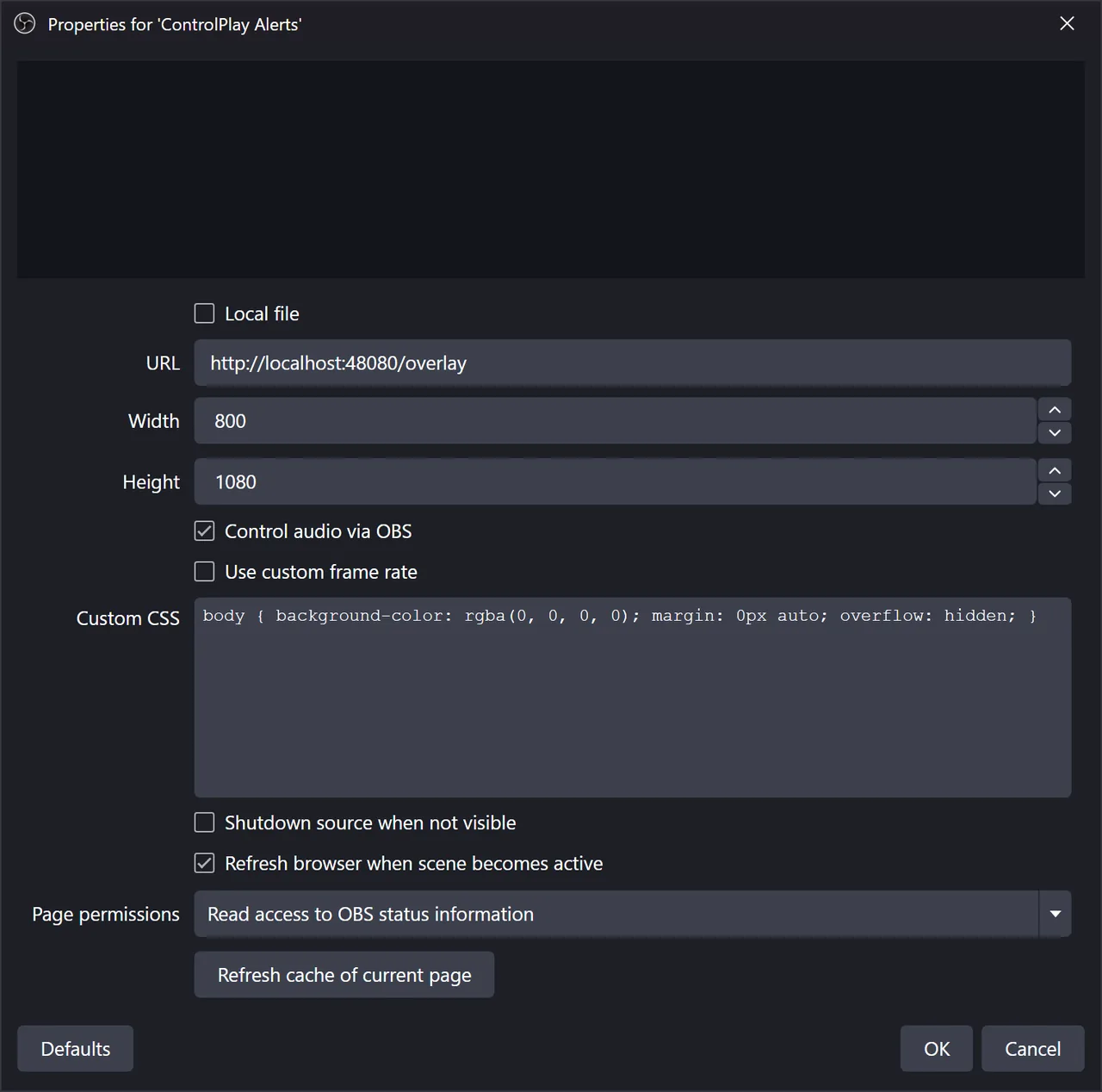
- Back in ControlPlay, tick "Control audio via OBS" enabled and "Refresh browser when scene becomes active" enabled, then click Next.
Overlay effects: the Window Capture
This part is for one PC with Windows 11 version 25H2 or newer. The overlay window only exists while an effect runs, so start a test first.
- On Configure window capture, click Start test (60s). Outside the wizard, use Settings → Streaming Setup → Step 4: Desktop Overlay in OBS → Show Overlay Window (60 seconds).
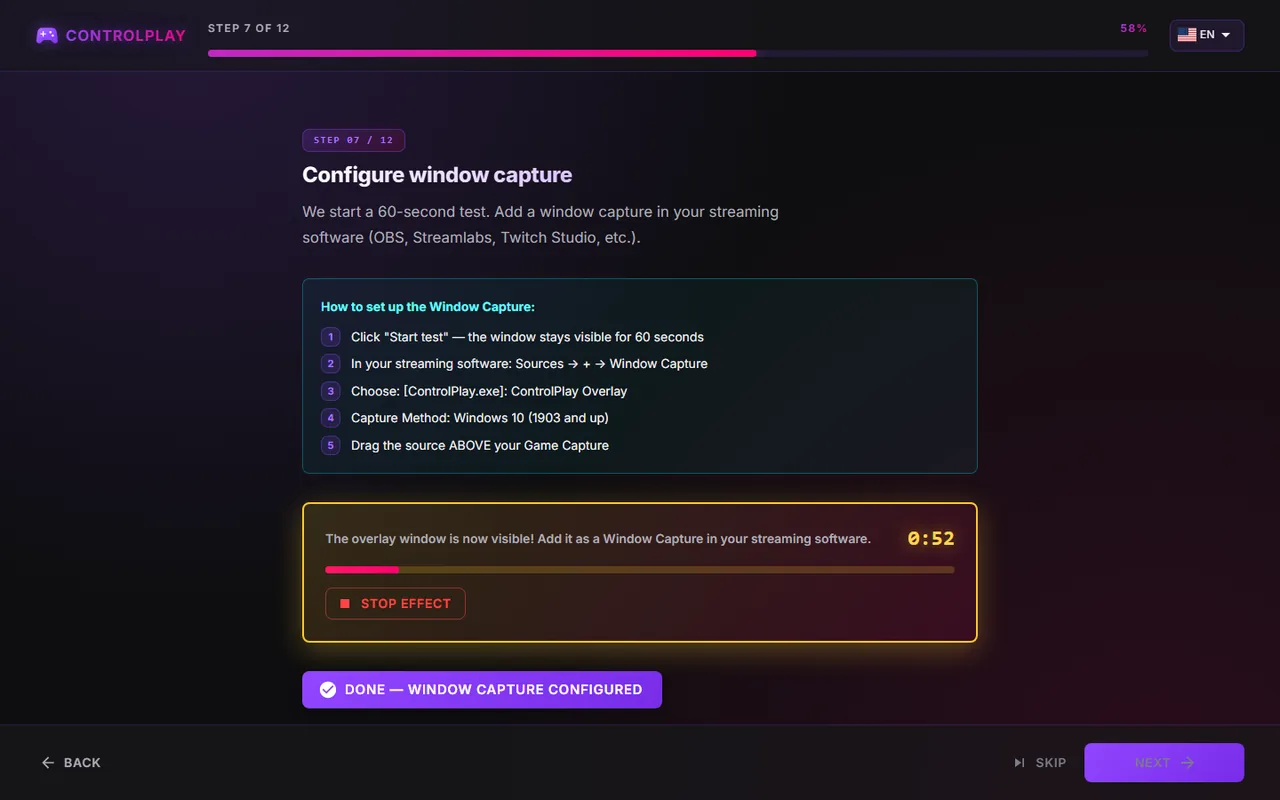
- In OBS, click + under Sources, pick Window Capture and name it ControlPlay Overlay.
- Under Window, pick [ControlPlay.exe]: ControlPlay Overlay.
- Set Capture Method to Windows 10 (1903 and up) and Window Match Priority to Window title must match, then click OK. That way OBS never grabs a different window by mistake.
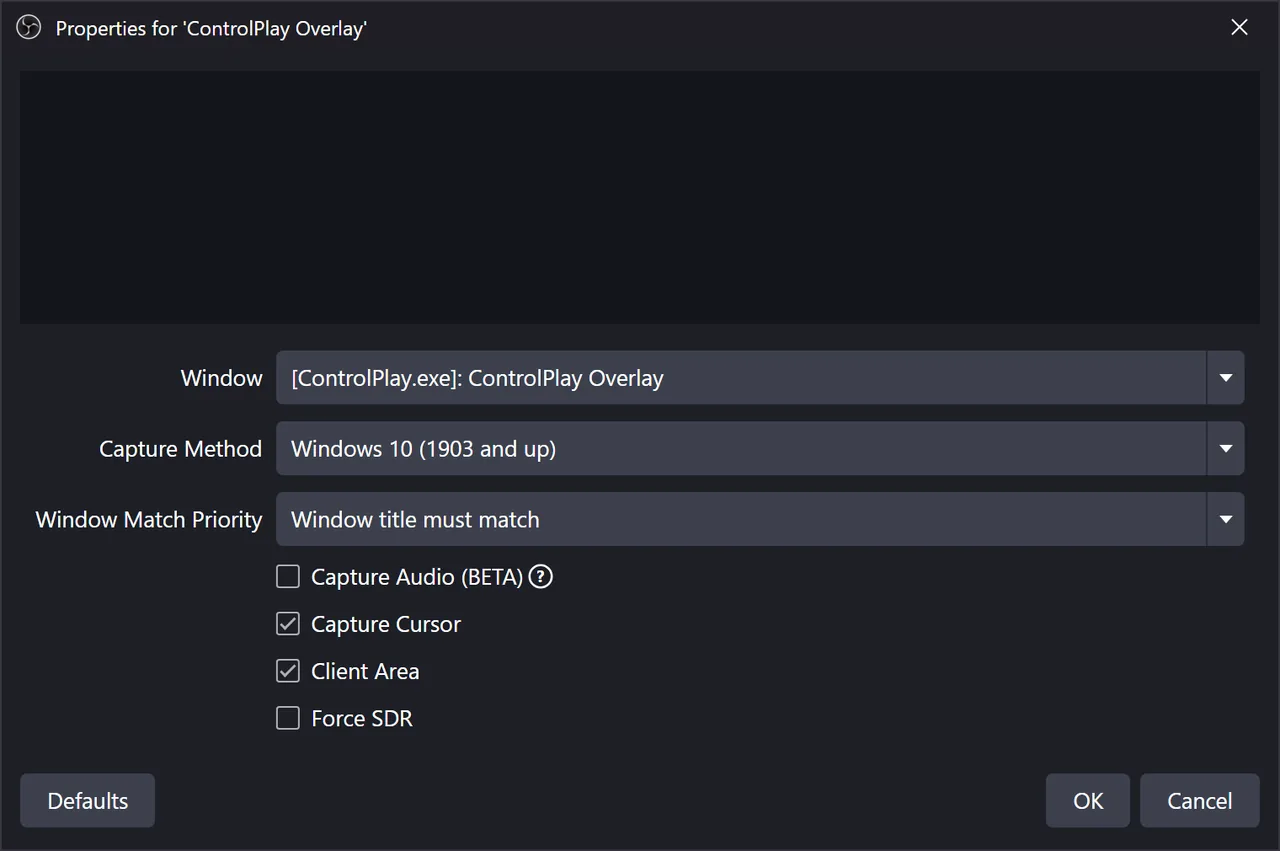
- Drag ControlPlay Overlay below ControlPlay Alerts and above your game capture.
- Back in ControlPlay, click the button that confirms your Window Capture is configured, then Next.
The window isn't in the list? The test only works while the Overlays page says Active. If it says Locked, see the fixes at the end.
Do you play in more than one scene? In each other scene, click +, pick the same source type and use Add Existing to add ControlPlay Overlay first and ControlPlay Alerts second. Then check the order: Alerts at the top, Overlay below it, your game underneath.
Auto-refresh with OBS WebSocket
On Connect to OBS WebSocket, paste your OBS password and click Test connection. Pick ControlPlay Alerts under Browser source name in OBS, leave Auto-refresh on start on and click Next. ControlPlay then refreshes the alerts each time it starts, so OBS doesn't keep an old copy.
Streamlabs Desktop and other programs
Pick Other streaming software in the wizard and add both sources by hand. First add a browser source with the URL at 800 × 1080, then tick Browser Source added successfully in the wizard. During the 60-second test, add a window capture of the ControlPlay Overlay window and confirm it in the wizard. The option names may differ in your program. There's no auto-refresh, so start ControlPlay before your streaming app, or refresh the browser source afterwards. We can't promise that every program works.
Older Windows versions
ControlPlay only adds the overlay Window Capture on Windows 11 version 25H2 or newer. You can find your version under Windows Settings → System → About. On older Windows, the wizard shows Hardware window capture not available and only adds the alerts.
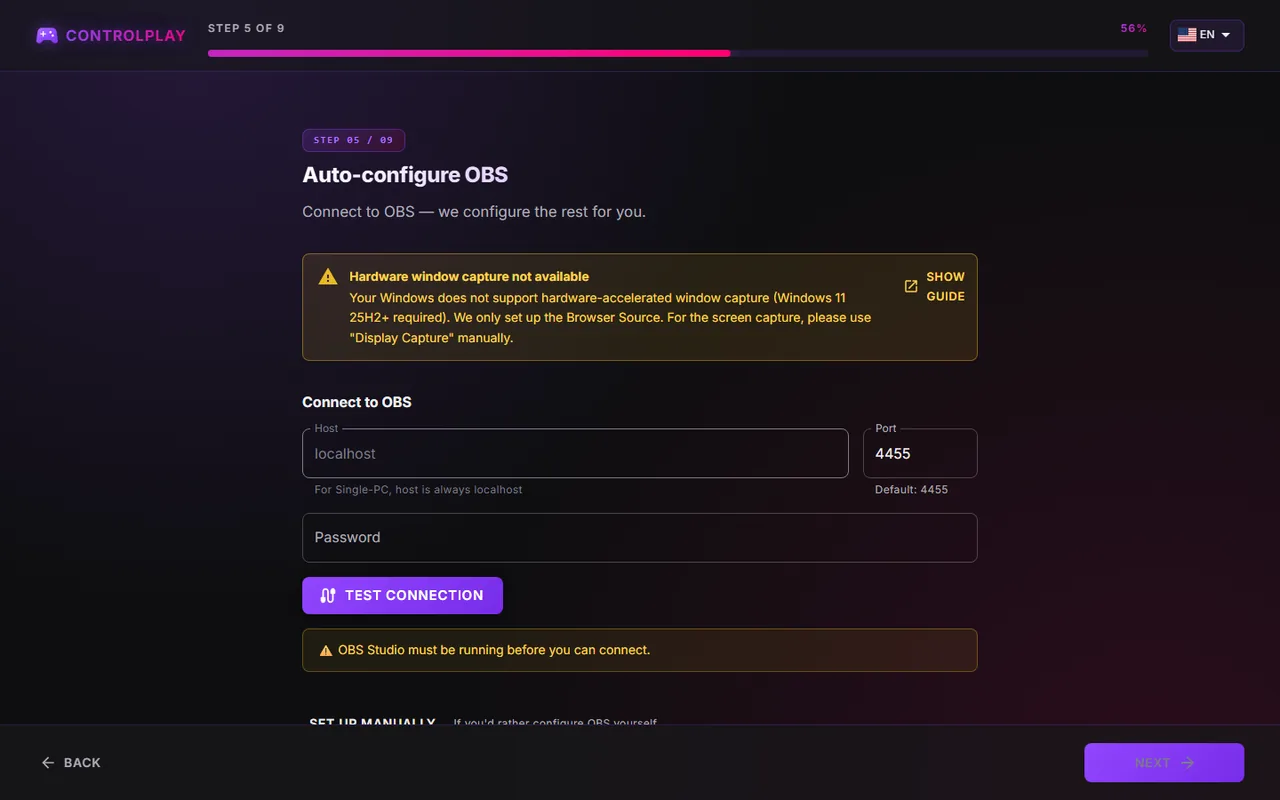
You have two options:
- Update Windows to Windows 11 version 25H2 or newer. Then run the OBS part of the wizard again, and it adds ControlPlay Overlay. If you added a Display Capture before, remove it in OBS, so your stream no longer shows your whole monitor. Check the source order afterwards.
- Use a Display Capture. In OBS, click + under Sources, pick Display Capture and choose the same monitor that is selected in the monitor menu at the top of the ControlPlay Overlays page (★ marks your main monitor). Drag it down until it sits right above your game capture. It now shows your game and the effects together.
A Display Capture shows everything on that monitor, including notifications and pop-ups. Turn notifications off while you're live.
Two PCs
ControlPlay runs on your gaming PC and OBS on your streaming PC. Both need to be on the same home network.
- On the streaming PC, turn on the WebSocket server in OBS as shown above. Show Connect Info also shows that PC's IP address.
- On both PCs, open Windows Settings → Network & internet → Ethernet (or Wi-Fi, then your network's properties) and set Network profile type to Private network. The firewall rules below only work on a Private network.
- On the gaming PC, run the wizard as above, but pick Dual PC instead of Single PC.
- On Auto-configure OBS, click Configure automatically under Gaming PC firewall: allow overlay port and confirm the Windows prompt. Now the streaming PC can load the alerts. No such card? Then the rule already exists.
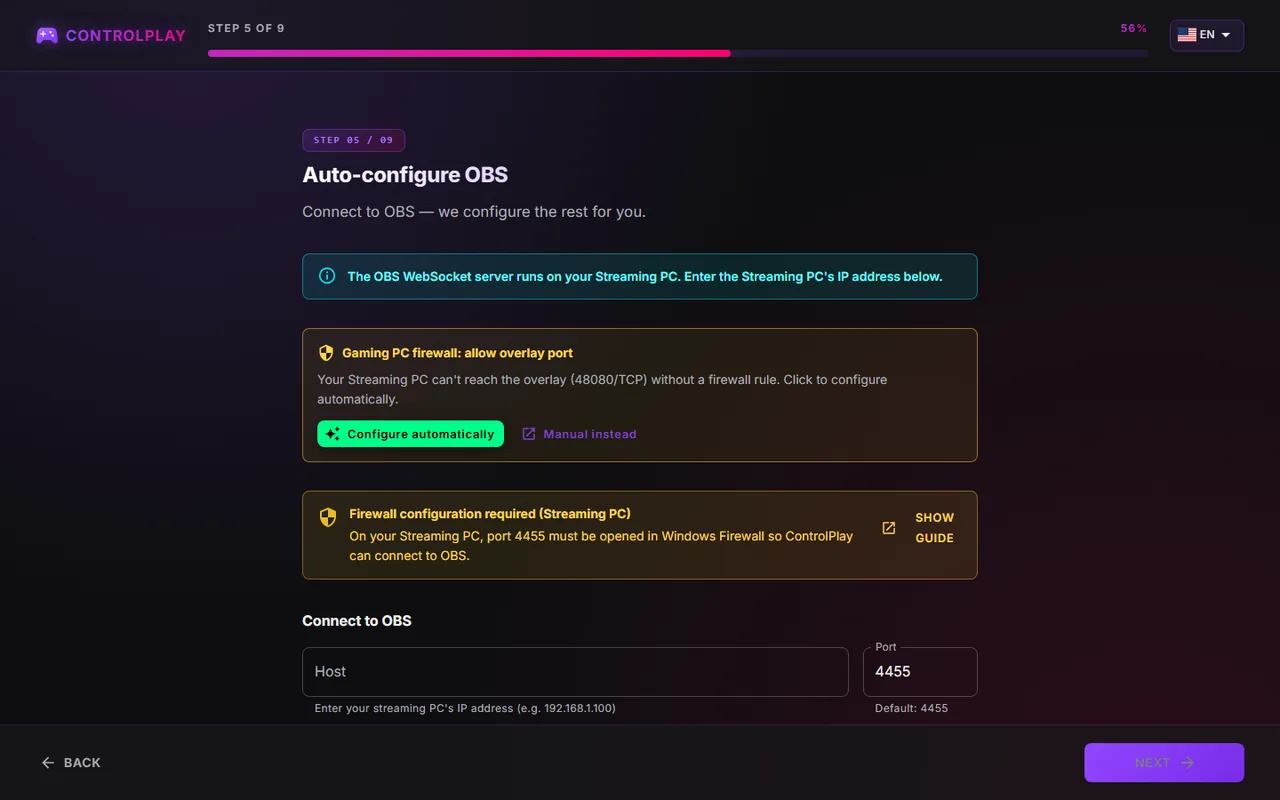
- At Firewall configuration required (Streaming PC), click Show guide and follow those steps on the streaming PC. They open port 4455 for OBS.
- Under Host, enter the streaming PC's IP address. Type the server password from Show Connect Info into Password and click Test connection.
- Tick your scenes and click Configure now.
The alerts source then uses the gaming PC's address, such as http://192.168.1.20:48080/overlay. There's no window capture step: effects appear on the gaming PC's screen and reach your stream through your capture of that screen, for example a capture card. So play in borderless windowed or windowed, or your capture card can't see the effects. Audio between two PCs depends on your setup and isn't covered here.
Test that everything shows up
Test off stream, with OBS open:
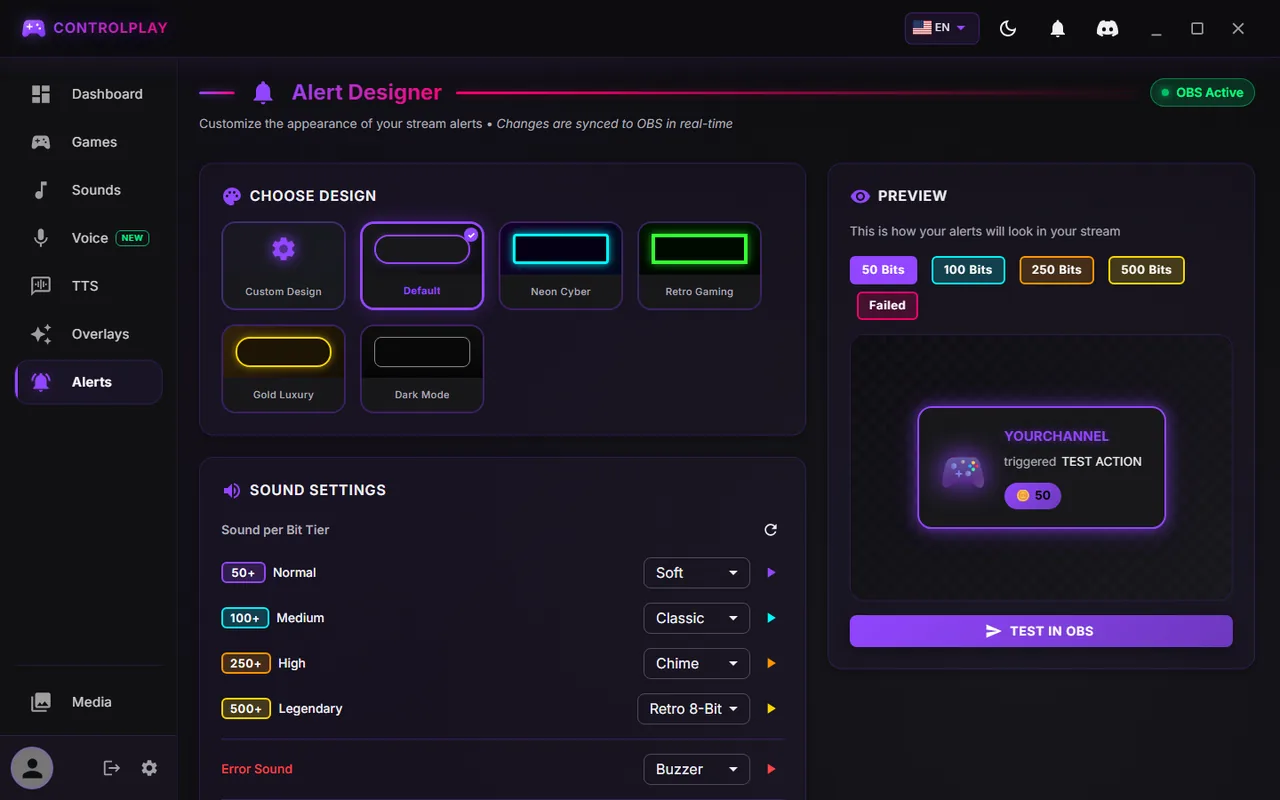
- In ControlPlay, open Alerts. The header says OBS Active. Not connected means OBS has no ControlPlay Alerts source loaded.
- Under Preview, click Test in OBS. An alert appears in the OBS preview, and the ControlPlay Alerts meter in the OBS Audio Mixer moves. You usually won't hear it in your headphones, because the sound goes only to OBS and your stream.
- Open Overlays and click Test on Snowfall. Snowflakes fall on your screen and in the OBS preview.
- Check the source order again.
Then start a short test stream and watch it from a second account or your phone. The setup guide walks you through that test.
Style your alerts
On the Alerts page:
- Choose Design sets the look of your alert banners.
- Under Sound Settings, pick a sound for each tier, from Normal to Legendary, and an Error Sound for failed actions.
- A custom sound comes from your media library. Keep it at 2 MB or smaller, or ControlPlay Alerts plays a built-in sound instead.
Your changes reach OBS right away, with no refresh needed.
Fix common problems
| Problem | What to do |
|---|---|
| Couldn't reach OBS or OBS didn't respond in time | Start OBS, tick Enable WebSocket server under Tools → WebSocket Server Settings, click Apply and click Test connection again. With two PCs, also check the Host IP from Show Connect Info, follow the Show guide steps of Firewall configuration required (Streaming PC) on the streaming PC and set both PCs to a Private network. |
| Wrong password or OBS requires a password | Copy Server Password again from Show Connect Info in OBS and paste it into Password. |
| No scenes to pick | Create a scene in OBS, then click Reload. |
| No ControlPlay Overlay window in the OBS list | Start the 60-second test first. Overlays must say Active. Locked means a game on the Safeguard list is running. For the test, close it. |
| Overlays says Locked while you play | Your game is on the Safeguard list, which turns overlay effects off. For normal matches, open Overlays, scroll down to Safeguard, open Predefined Titles, click the trash icon next to your game and confirm with Got it, enable overlay. In ranked, keep ControlPlay off with Do Not Disturb, the moon icon at the top of ControlPlay. |
| Effects don't show while you play, and Overlays says Active | Set your game to borderless windowed or windowed. In exclusive fullscreen, the effects can't show over your game. |
| A black box covers your game during effects | Set the Capture Method of ControlPlay Overlay to Windows 10 (1903 and up). On Windows older than 11 25H2, use a Display Capture. |
| Effects on your screen, but not on stream | ControlPlay Overlay must be in your live scene, visible and above your game. Scene not ticked? Run the wizard again. On older Windows, use a Display Capture. |
| Not connected on the Alerts page | Check that OBS is open and has a ControlPlay Alerts source. Open its Properties and compare the URL with the one under Settings → Streaming Setup. Correct it, then click Refresh cache of current page. |
| No alerts on stream, but the Alerts page says OBS Active | ControlPlay Alerts must be in your live scene, visible and above your game. If a wizard run put it under your game, drag it back to the top. |
| Overlay Port Changed | Port 48080 was taken, so the alerts URL changed. Paste the new URL from that message into the properties of ControlPlay Alerts. Alternatively, run the OBS part of the wizard again, tick the scenes marked Settings outdated and click Configure now. |
| Waiting for ControlPlay... on stream | The alerts can't reach ControlPlay. Start it, or let an update finish. Still no alerts? Check the URL and, with two PCs, the firewall. |
| Two PCs: the alerts stay empty | Run Configure automatically on the gaming PC, set both PCs to a Private network and check that the URL has the gaming PC's IP address. |
Go live
Once your test stream shows alerts and effects, you're ready. Still missing a piece? The setup guide covers the account, the desktop client and activating the Twitch Extension as Overlay 1. Then help your viewers find ControlPlay with the promotion guide.