The OBS Dock is a small ControlPlay panel inside OBS Studio. It shows every action your viewers trigger, live, with the viewer's name and the Coins. From the same panel, you refund an action, pause a viewer for 15 or 60 minutes, see who of your regulars is watching, and show all your viewers where to click. You add it once as a custom browser dock and never have to leave OBS during your stream.
This page assumes ControlPlay already runs on your PC and the Twitch Extension is active. If not, start with the ControlPlay setup guide. The dock itself never shows up on your stream: alerts and overlay effects come from the sources in the OBS setup guide.
What the OBS Dock does
| Part | What you get |
|---|---|
| Live feed | Every action with viewer, game and Coins, a few seconds after it happens. TTS messages show their text. |
| Refund | One click gives a viewer the Coins of an action back. |
| Timeout | Pause one viewer's actions for 15 or 60 minutes. Chat stays untouched. |
| Watchlist | See when your VIPs, your watchlist, top supporters and the ControlPlay team join or leave. |
| Statistics | Top-ups, spending, refunds and coupons of the last 24 hours. |
| Extension buttons | Open the ControlPlay overlay for all viewers or make the ControlPlay button burn, so viewers see where to click. |
Get your personal dock URL
Your dock has its own URL, and it contains your personal token. You find it on the widget page:
- Sign in on controlplay.app and click Download Client in the sidebar. The Download & Setup page opens.
- At Add the OBS Dock, click Open widget page.
- On the OBS Dock card, click the copy button next to the Widget URL.
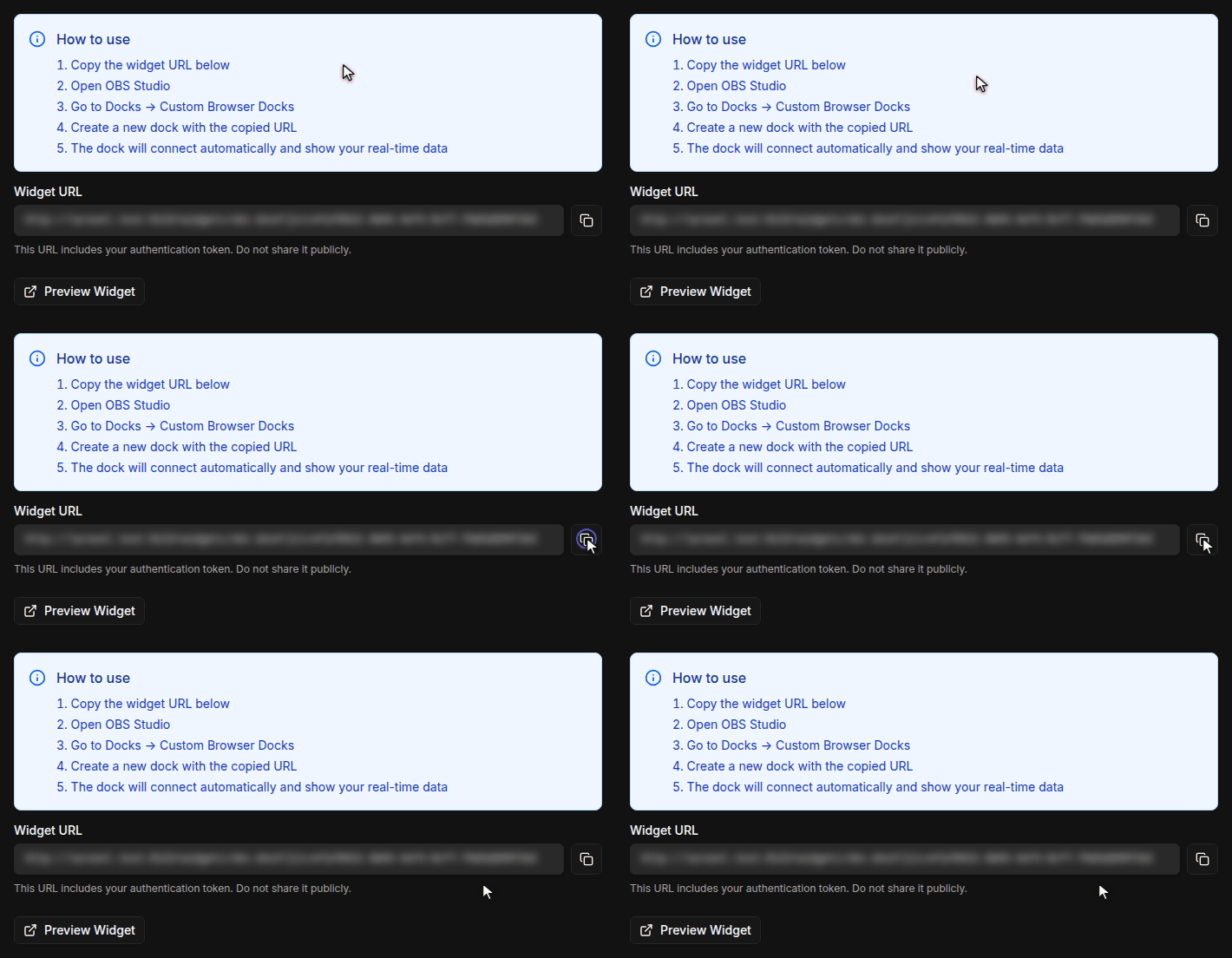
If your dock hasn't been connected for a week or never was, the Streamer Hub also shows the card OBS Dock not in use with a link to the widget page.
Add the dock in OBS Studio
- In OBS, open Docks → Custom Browser Docks. In OBS 28 and 29, it's View → Docks → Custom Browser Docks.
- Enter a name, such as ControlPlay, paste the URL into the URL field next to it and click Apply.
- The dock opens as its own window. Drag it to the edge of the OBS window where you want it, for example next to Scenes and Sources.
At the top left, the dock shows the ControlPlay logo and a green Live badge. Then it's connected. The time next to it shows when the feed last updated. The dock works in any width: if it's narrow, the buttons move to a second line.
OBS keeps the dock and opens it again every time it starts. You can open the same URL in a browser as well, for example on a second screen. Preview Widget on the widget page does that and is also a quick way to check that your URL works. The dock speaks the language of your ControlPlay account. You change it under Settings → Profile → Language, and the dock follows the next time it loads, for example after you restart OBS.
Never add the dock URL as a Browser Source to a scene. It belongs in the dock only.
Show your viewers where to click
The OBS Dock shows your viewers where ControlPlay is. On Twitch, the ControlPlay button mostly stays hidden until a viewer moves the mouse over the video, so many viewers never notice it. Two buttons at the top of the dock fix that for everyone watching, while you explain it out loud.
The first two buttons at the top of the dock reach every viewer who has your stream open with the ControlPlay Extension:
- Show fire logo for all viewers (the flame icon). The ControlPlay button appears in every viewer's player and burns. It keeps burning until the viewer moves the mouse over the video or clicks the button. Use it while you say: "See the burning button? Click it."
- Open overlay for all viewers (the monitor icon). The ControlPlay overlay opens for everyone, with your actions and their Coins. Viewers see right away what they can trigger. They close it with a click on the ControlPlay button.
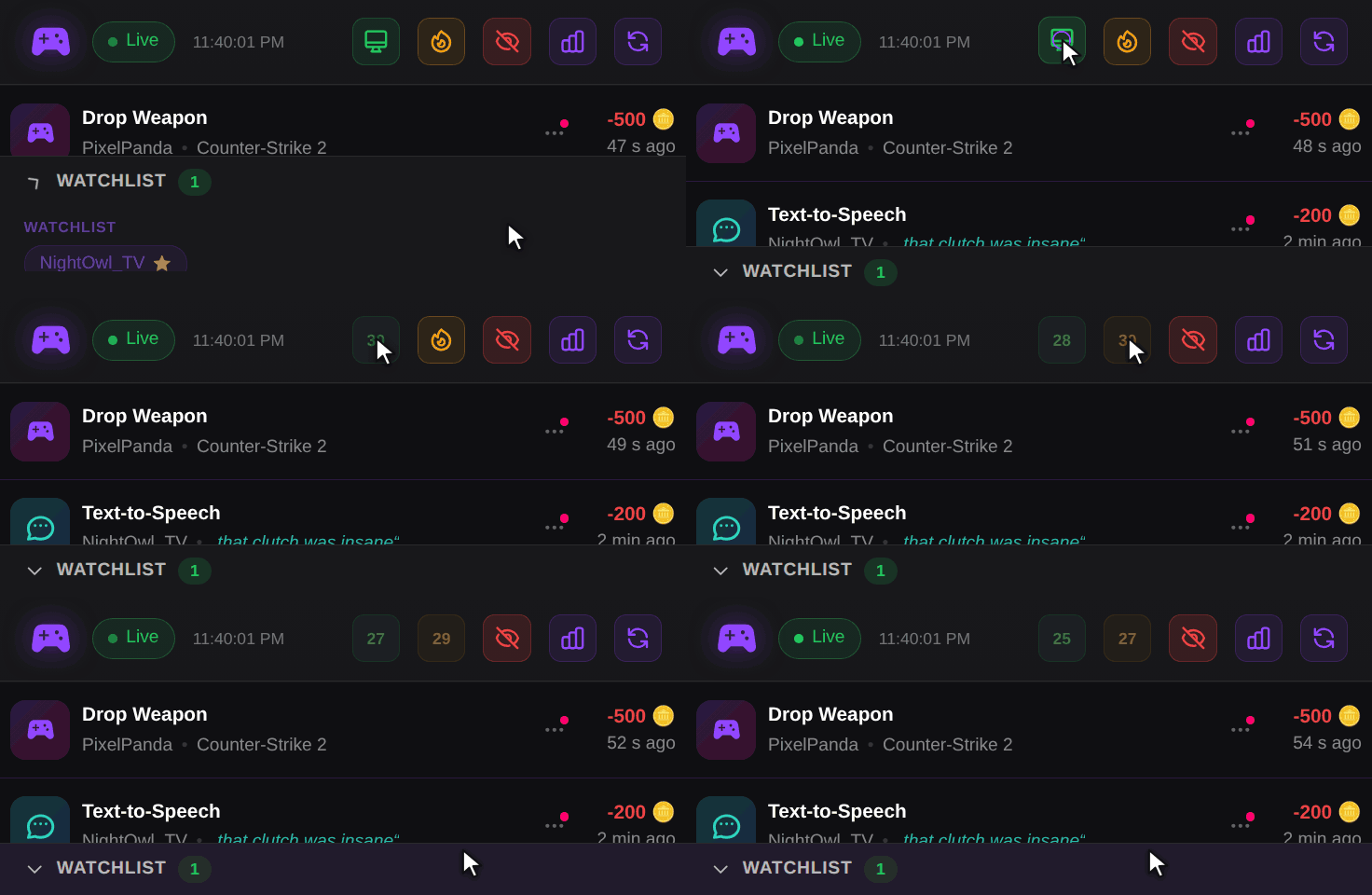
After each click, the button shows a 30-second countdown. The countdown counts for every place where your dock is open. Both buttons are greyed out while the dock isn't Live.
When it helps most:
- At the start of your stream, when you explain ControlPlay for the first time.
- After a raid or a host, when lots of new viewers arrive at once.
- When chat asks how it works. One click answers it for everyone.
A walkthrough that works: click the flame, point at the burning button and say what happens when viewers click it. Then click the monitor icon and go through two or three of your actions while everybody sees the list. The overlay covers part of your video for viewers until they close it, so keep it for moments like these and don't open it every few minutes. More ideas for introducing ControlPlay on stream are in the promotion guide.
Test both buttons once before you rely on them. Watch your stream with a second Twitch account in another browser, then click both buttons in the dock.
Read the live feed
Every action shows up as a row at the top of the list a few seconds after the viewer triggers it. The newest row glows purple for 30 seconds, and the list jumps back to the top. The feed keeps your last 100 entries.
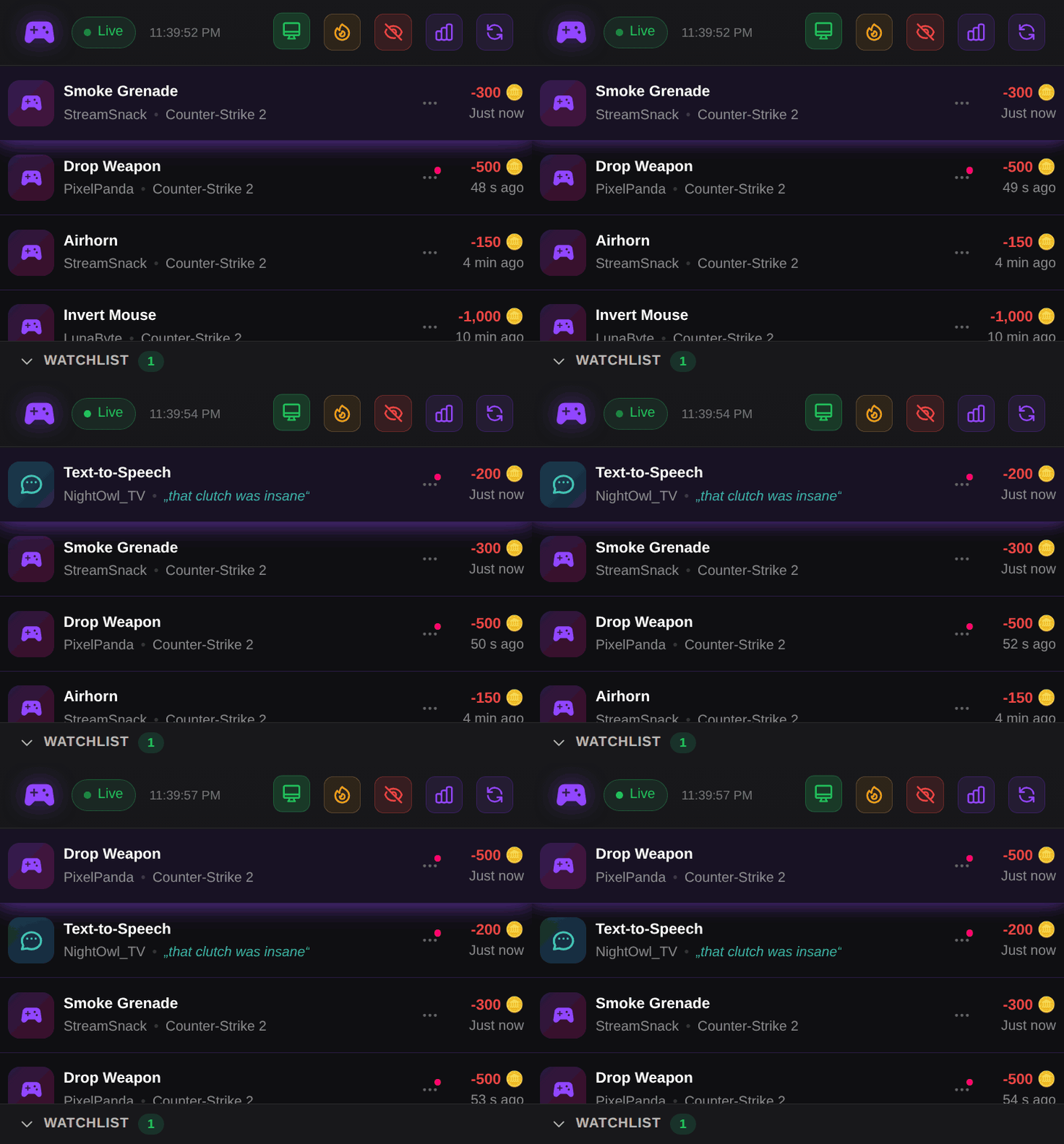
Each row shows:
- The action in bold, with an icon: a controller for actions, a speech bubble for TTS.
- The viewer, and next to it the game you were playing. For TTS, you see the message in quotes instead, so you can read what's being said.
- The Coins in red with a minus, and how long ago it happened.
Some rows carry a status badge:
| Badge | Meaning |
|---|---|
| Pending or Running Action | ControlPlay is still running the action. |
| Pending Refund | The action failed. ControlPlay gives the viewer the Coins back by itself, you don't need to do anything. |
Rows without a badge ran normally. The eye button at the top shows or hides Coin Credits, the rows for Coins your viewers got. They're hidden at first, so the feed only shows actions.
Refund an action with one click
Something didn't work in your game, you were away, or a viewer hit the wrong action? Give the Coins back:
- Point the mouse at the row. Three buttons slide out of the ⋯ button on the right.
- Click the arrow, Refund.
There's no confirmation and no undo. The viewer gets the Coins back in your channel right away. The row fades out, the amount loses its minus, and Total Refunds in the statistics goes up.
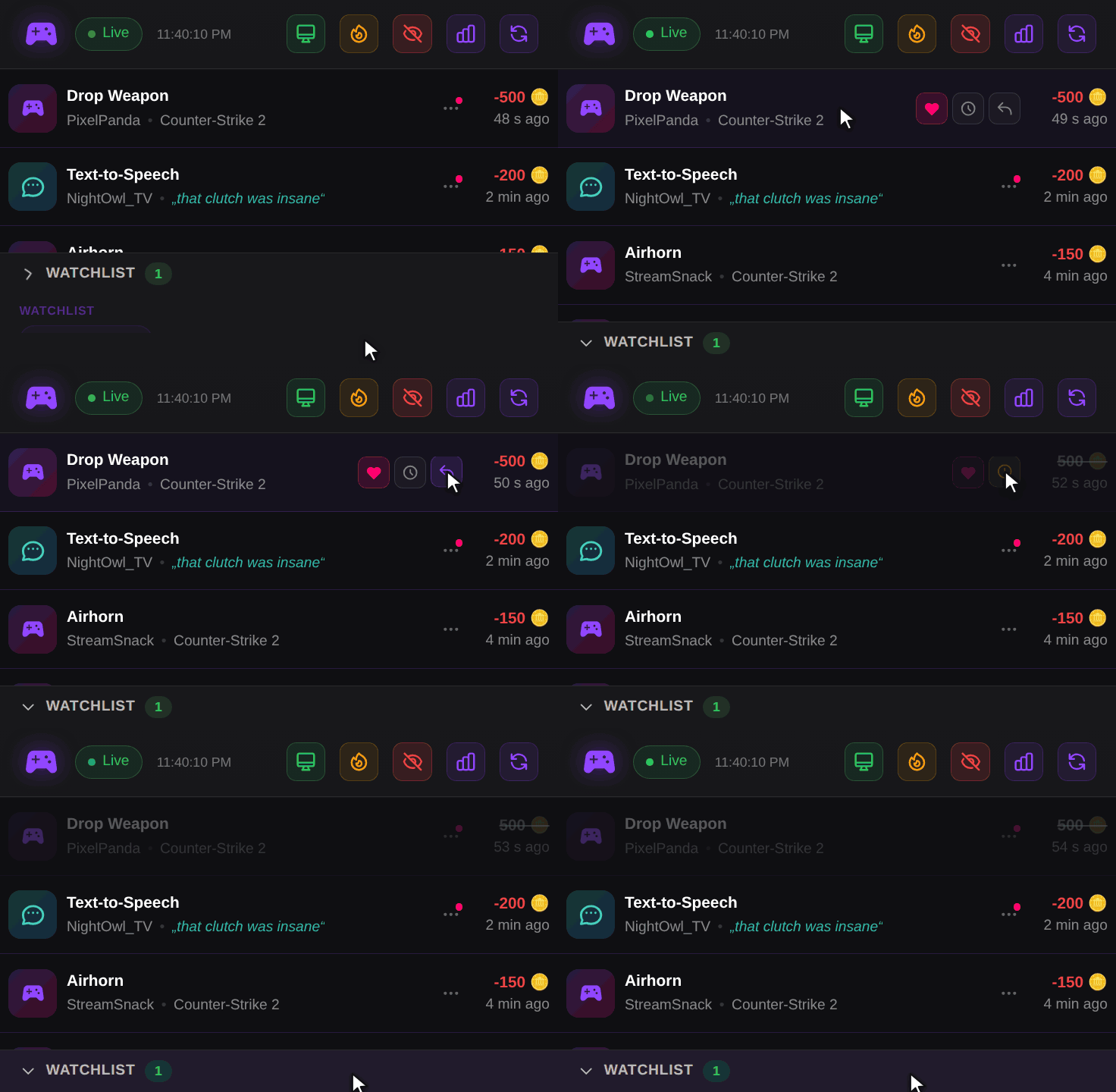
You can only refund actions that ran. On rows with Pending, Running Action or Pending Refund, the button doesn't react, because ControlPlay is still on it or refunds the Coins by itself. Coin credits have no Refund button.
Pause a viewer for 15 or 60 minutes
One viewer is overdoing it? Pause just that person instead of turning actions off for everyone:
- Point at one of their rows and click the clock, Timeout viewer.
- Pick 15 min or 60 min. Cancel closes the window.
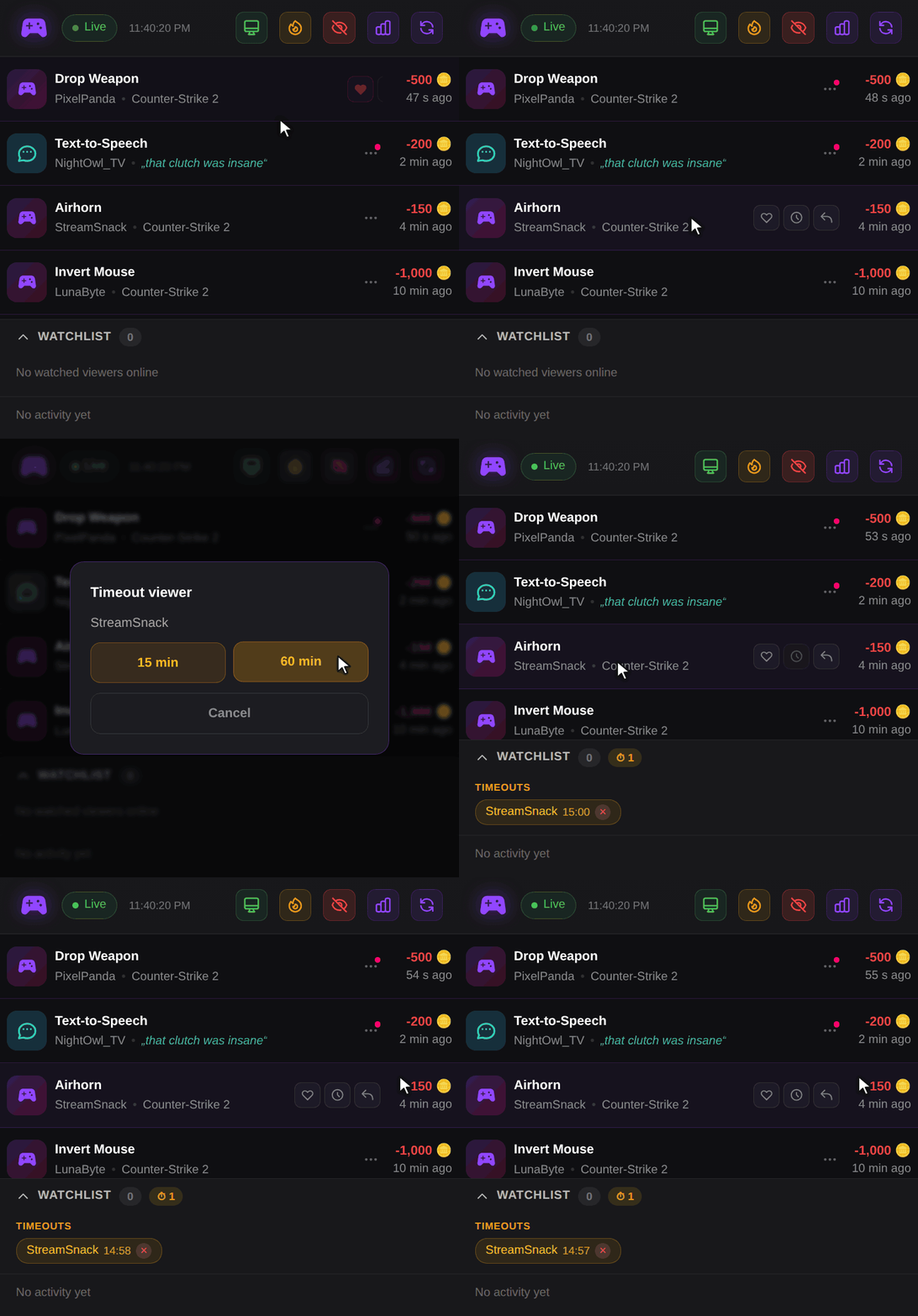
During the pause, that viewer can't trigger any action in your channel. Their Extension shows a countdown, like a cooldown, and they keep their Coins. It's not a Twitch timeout: the viewer can still chat, and everyone else can still trigger actions.
The paused viewer shows up in the watchlist under Timeouts with the minutes left, and the watchlist header counts active timeouts with ⏱. Changed your mind? Click the × next to the name (Remove timeout).
For more ways to keep actions fair, read the viewer safety guide.
Know who is watching: the watchlist
The bottom half of the dock is the Watchlist. Click its header to fold it in or out. The number next to it shows how many watched viewers are online right now.
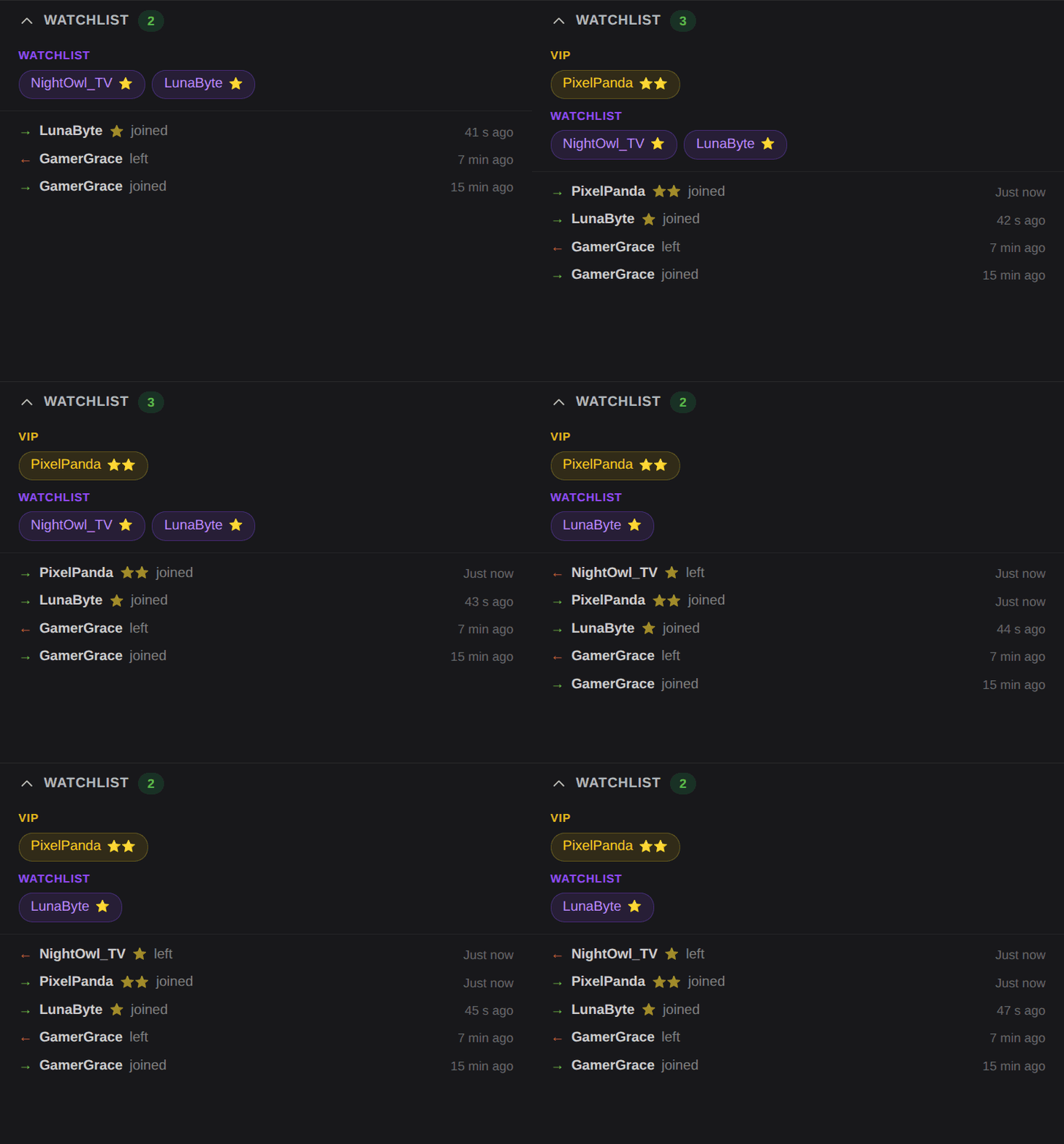
The watchlist only shows viewers who have your stream open with the ControlPlay Extension. Viewers who only read chat don't show up. It sorts them into groups:
- VIP and Watchlist: your own two lists. You decide who goes where.
- Admins: members of the ControlPlay team.
- Stars: ⭐ or ⭐⭐ next to a name mark your Top supporters. ControlPlay sets them automatically from all the Coins a viewer has got in your channel so far. Coupons and Channel Points don't count. Top supporters who aren't on one of your lists show up under Watchlist.
Below the groups, a ticker shows who joined (→) and who left (←), with the time. It starts empty each time the dock loads and shows No activity yet until someone comes or goes.
To put a viewer on a list:
- Point at one of their rows and click the heart, Add to watchlist.
- Pick VIP or Watchlist.
A pink dot on the ⋯ button marks rows of viewers who are on one of your lists. To take someone off, click the heart again and pick Remove from list. Stars stay, because ControlPlay sets them.
Check your last 24 hours
Click the bar chart button at the top of the dock. Statistics opens with four numbers for the last 24 hours:
| Number | What it counts |
|---|---|
| Total Top-ups | Coins your viewers got in your channel. Coupons and Channel Points aren't included. |
| Total Spending | Coins your viewers used for actions. |
| Total Refunds | Coins that went back to viewers, by you or automatically. |
| Coupon Rewards | Coins from redeemed coupons. |
Click the button again to fold the numbers away. Longer periods are on your Streamer Hub.
Connection status and reconnecting
The badge next to the logo tells you whether the dock is connected:
| Badge | Meaning |
|---|---|
| Live (green) | Connected. New actions come in. |
| Connecting... or Reconnecting... | The dock is connecting. After a dropout, it tries again by itself and waits a little longer after each failed try, at most 15 seconds. |
| Offline or Error | Not connected. |
The round arrows at the far right do two jobs. While the dock is Live, they reload the feed and the statistics. While it's not, they reconnect right away instead of waiting. When we update the dock, it reloads by itself.
Keep your dock URL to yourself
The part of the URL after ?jti= is your personal token. Anyone with the URL can open your dock and use every button in it: refund actions, pause viewers, open the overlay for your viewers. So:
- Never post the URL, send it in chat or put it in a Browser Source.
- Don't open the widget page while you're live with your screen visible.
- Keep it in your OBS dock and nowhere else.
If the URL got out, or you're not sure:
- On the widget page, click Reset Token.
- In the Reset Widget Token window, click Reset Token again.
- Copy the new Widget URL.
- In OBS, open Docks → Custom Browser Docks, replace the old URL with the new one and click Apply.
The old URL stops working right away, and every dock that's still open with it disconnects. Your account always has exactly one valid URL, so replace it everywhere you use the dock.
Fix common problems
| Problem | What to do |
|---|---|
| The dock only shows 403 and Invalid or revoked token | The URL is old or incomplete, for example after Reset Token. Copy the Widget URL again from the widget page and replace it in Docks → Custom Browser Docks. |
| A message in English says the token was revoked | Someone clicked Reset Token. Paste the new URL as above. |
| The badge stays on Offline or Error | Click the round arrows. If that doesn't help, open the URL with Preview Widget on the widget page. If it works there, paste the URL into OBS again, then restart OBS. |
| No new actions show up | Check that the badge says Live. Actions appear a few seconds after the viewer triggers them. Coin credits only show after you click the eye button. |
| The Refund button is missing or doesn't react | The action is still Pending or Running Action, is refunded automatically (Pending Refund) or was refunded already. |
| The flame and monitor buttons are grey | The dock isn't Live, or a button is still counting down from 30. |
| Viewers don't see the fire logo or the overlay | The ControlPlay Extension has to be active as Overlay 1 on your channel, and viewers need your stream open with the Extension. Test it with a second account in another browser. |
| The watchlist says No watched viewers online | Nobody on your lists, no top supporter and no admin has your stream open with the Extension right now. |
| The dock is in the wrong language | Change Settings → Profile → Language on controlplay.app and restart OBS. |
Go live
With the dock in OBS, you're set:
- Create your free account on controlplay.app, if you haven't yet.
- Install the ControlPlay desktop client on your Windows PC from Download & Setup.
- Activate the ControlPlay Extension on Twitch as Overlay 1.
- Add the OBS Dock as shown above, go live and click the flame once your first viewers are in.
The ControlPlay setup guide walks you through steps 1 to 3.