ControlPlay takes your voice straight from the mic you pick in ControlPlay, before OBS and Discord get it. Filters in OBS or Discord only change the sound inside that app and never reach ControlPlay, so your mic has to sound clean on its own. This guide assumes you set up voice effects in the setup wizard, so OBS and Discord listen to ControlPlay Virtual Mic. Not yet? Start with the ControlPlay setup guide.
In Clean Mic, ControlPlay adds no processing of its own. Clean Mic means no voice effect is running. While no sound or TTS plays, what you hear with Hear Myself is what ControlPlay passes on to OBS and Discord.
Why OBS and Discord filters don't help
Your voice takes this path:
Your mic → Windows → ControlPlay → ControlPlay Virtual Mic → OBS, Discord, game chat
ControlPlay opens your mic directly and never takes audio from OBS or Discord. A filter only changes the sound inside its own app. Noise suppression, a noise gate, a compressor or EQ on your old mic source in OBS never touch ControlPlay Virtual Mic, and Discord's filters only change what Discord sends. That's why your voice can sound worse once OBS and Discord listen to ControlPlay Virtual Mic: problems your old filters hid come through again.
ControlPlay doesn't clean up your normal voice either. Without an effect, and while no sound or TTS plays in voice chat, ControlPlay only applies your level settings, and they start at 0 dB. So fix the mic itself.
Make your mic sound good on its own
- Listen without filters. With headphones on, record a few seconds in the Windows recorder app, or in OBS with every filter on your mic source switched off. Make sure it records the mic you speak into, not your webcam or another mic. Listen back: that's the sound you're working with.
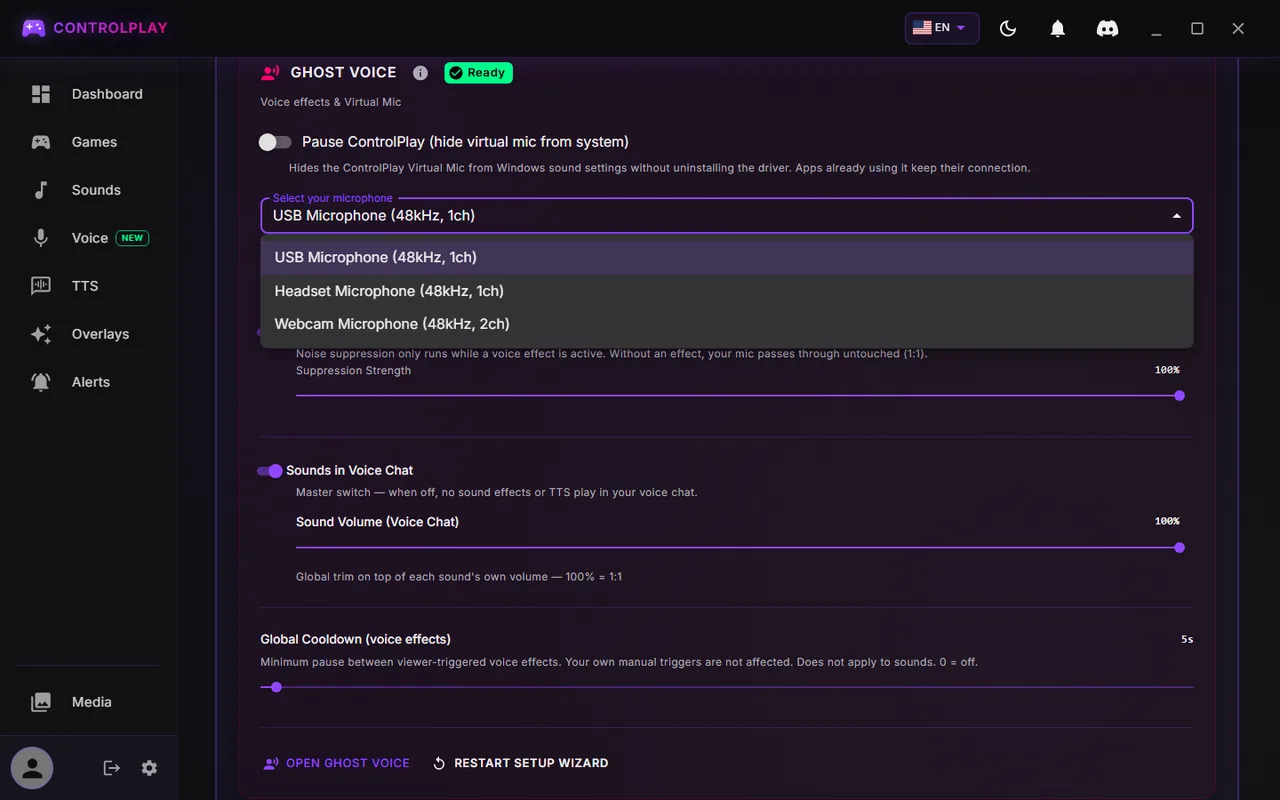
- Check which mic ControlPlay uses. Open Settings (the gear at the bottom of the sidebar), then Audio. Scroll down to the Ghost Voice section at the bottom of the page. There, Select your microphone shows the mic from your setup. It should be the one you speak into. ControlPlay Virtual Mic is never in this list, and a mic app like NVIDIA Broadcast is fine if it passes the check in step 6. Just plugged in a USB mic? Click another tab in Settings, then Audio again, to refresh the list.
- Set distance and room. As a rule of thumb, keep about 15 to 20 cm (6 to 8 inches) between your mouth and the mic, and add a pop filter if "p" and "b" sounds pop. Keep fans, your PC and your keyboard away from the mic.
- Set the gain. Open Voice in the sidebar, watch the Input meter and talk as loud as you do in a hype moment. Turn the gain on the mic, on your audio interface or in your mic's own app until the loud parts reach the orange zone, but never red. If the meter turns red or a clipping warning appears below it, turn the hardware gain down, not Pre-Gain. Pre-Gain doesn't move the Input meter. No gain control? Move closer if you're too quiet, or back a little if you hit red. XLR mic, and the meter hardly moves although your interface shows a signal? Your mic is probably in input 2, so read XLR mics and audio interfaces below before you touch the gain. No meters at all? Click Try again in the red banner on that page.

- Route Discord and OBS. Both need ControlPlay Virtual Mic as their mic. The voice changer guide shows where to set it, and the Discord section below covers what affects your sound.
- Check the result. Turn on Hear Myself at the top of the Voice page and talk. It's the same check as Start microphone check in the setup wizard. If you see Set up monitor device there instead, you haven't picked a listen device (see Hear yourself without echo below). With only one headset, you don't need one: make a short recording in OBS and listen back. OBS records ControlPlay Virtual Mic, so you hear what your viewers get. Don't use Restart setup wizard just for a check: it starts your whole voice setup over.
XLR mics and audio interfaces
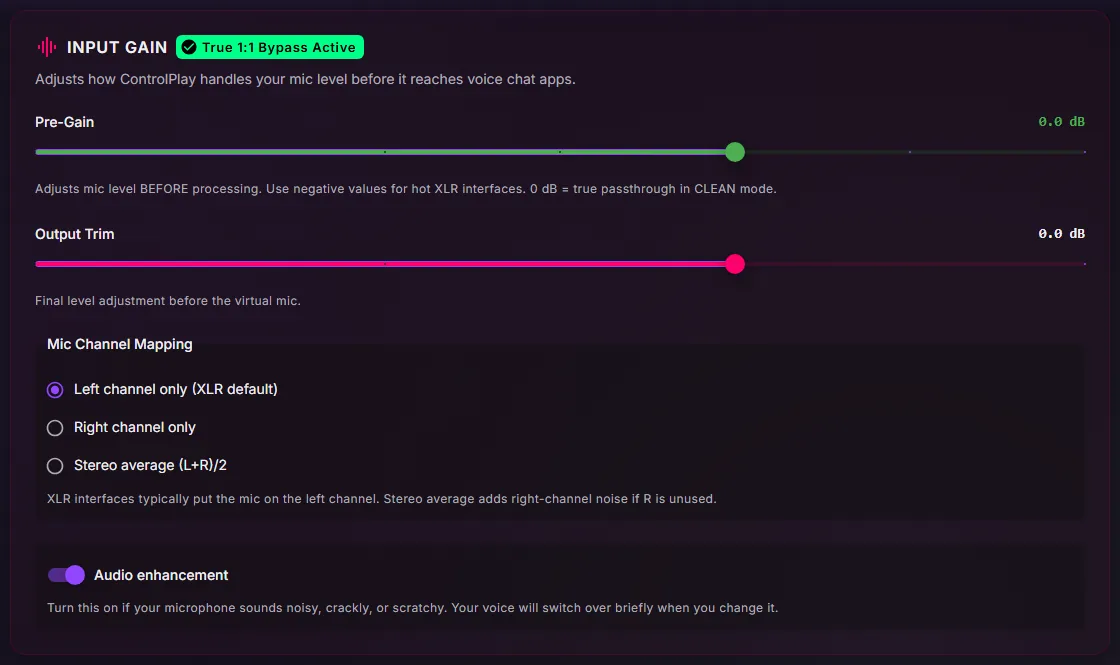
These settings sit in the Input Gain card under Settings → Audio. Leave the other switches in that card as they are.
- Mic on input 2. By default, Mic Channel Mapping is set to Left channel only (XLR default), which is usually input 1. If your mic is plugged into input 2, pick Right channel only. Not sure which input? Look at the number next to the socket on your interface, or pick Right channel only and watch the Input meter on the Voice page. If it moves while you talk, keep it. Otherwise, switch back.
- Pre-Gain last. Set the gain on the interface first and leave Pre-Gain at 0 dB if you can. Pre-Gain and Output Trim only work while ControlPlay runs, so your level changes when you quit it. Keep Output Trim at 0.
- Recordings. ControlPlay's recorder windows (see below) only record the left channel and may record silence from input 2. If you record in ControlPlay, plug your mic into input 1.
What replaces my OBS filters?
- Your mic itself. Distance, gain and a quiet room do more than any filter.
- Noise Suppression. This switch in the Ghost Voice section is on by default, but it only works while a voice effect runs or a sound or TTS plays in voice chat. It never touches your normal voice, so it doesn't replace a clean mic.
- Audio enhancement. This switch in the Input Gain card is on by default and keeps Windows' own mic processing in place. If your mic crackles or sounds scratchy, check that it's on.
- Mic apps. NVIDIA Broadcast, Wave Link, GoXLR and similar apps are fine as your mic in ControlPlay if the check sounds good. Never set ControlPlay Virtual Mic as an input inside that same app, or you build a loop and hear echo.
- Filters on ControlPlay Virtual Mic in OBS. They only change what your stream hears, never Discord, and they also change your ControlPlay sounds and TTS there. Keep them light.
Hear yourself without echo
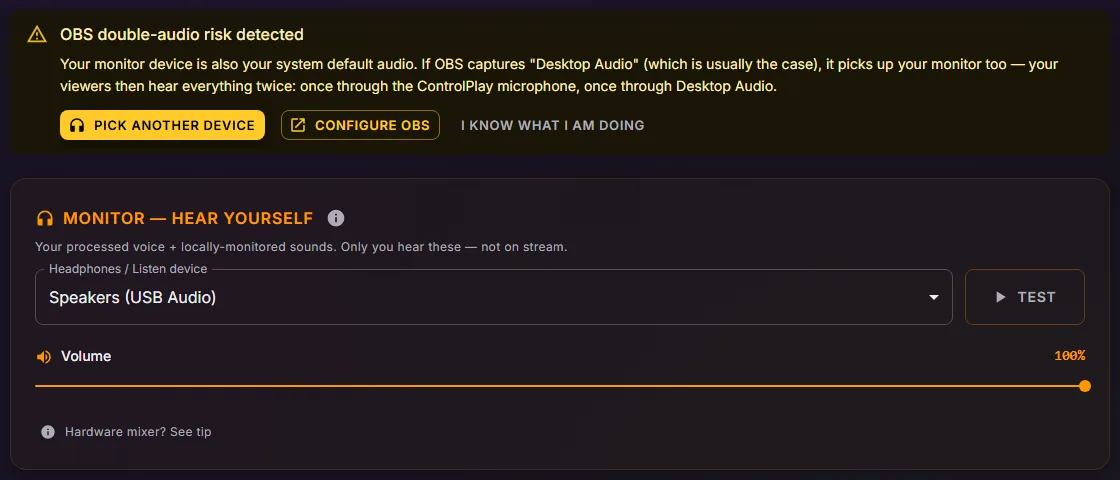
In Settings → Audio, the Monitor card sets where you hear yourself. Under Headphones / Listen device, pick headphones that OBS doesn't record. OBS usually records your Windows default output. If OBS records your only headset, pick the Off entry. Never pick speakers on your desk: your mic picks them up and you get echo. Many headsets show up as speakers in that list, and that's fine.
- Hear Myself on the Voice page needs that device, otherwise the page shows Set up monitor device. It plays your voice with the current effect, never your sounds.
- Hear myself when triggered is on for every voice effect by default (the headphones icon on its card). While an effect runs, it plays your changed voice on that device, even with Hear Myself off. If OBS records that device, viewers hear you twice during effects.
- OBS double-audio risk detected only appears when your listen device is also your Windows default playback device. It can't see what OBS records, so don't rely on it.
Your voice in Discord, game chat and OBS
The short version, with details in the voice changer guide:
- Discord. Set your input device to ControlPlay Virtual Mic. We recommend switching off Discord's noise suppression, echo cancellation and automatic gain control, because they can swallow ControlPlay sounds and TTS. Then ask a friend to listen.
- Voice activity or push to talk. Use voice activity in Discord if you can. With push to talk in Discord, sounds and TTS only go out while you hold the key.
- Push to talk in ControlPlay. Under Settings → Audio → Voice Chat Settings, the two Mode options marked ControlPlay hardware need the ControlPlay USB device. Without it, keep Automatic (without ControlPlay hardware), or sounds and TTS for voice chat get skipped.
- Sounds in Voice Chat. Leave this master switch in the Ghost Voice section on, or no sounds and TTS reach your voice chat.
- Game chat. Pick ControlPlay Virtual Mic in your game if it lets you. Whether that works depends on the game and your setup.
- OBS. Use exactly one mic source: ControlPlay Virtual Mic. Mute or remove your old mic source, or viewers hear you twice.
Recording your own voice or a sound? Pick the mic again
ControlPlay has two recorder windows:
- Your own TTS voice. In the sidebar, open TTS, then Open voice library, Create custom voice and Record. The window says Recording for voice cloning. This needs TTS on your channel. TTS unlocks per channel: the Streamer Hub shows your progress, and the Full Experience Package unlocks it right away.
- A sound. In the sidebar, open Media and click Record. The window says Recording as sound effect.
Each window has its own Microphone list, separate from your ControlPlay mic. It usually starts on the Windows default, the entry that begins with Default, and doesn't save your pick. So check it every time and pick the entry with your mic's real name. The list shows every Windows input, ControlPlay Virtual Mic included. If you made ControlPlay Virtual Mic your Windows default input for a game, the recorder may preselect it.
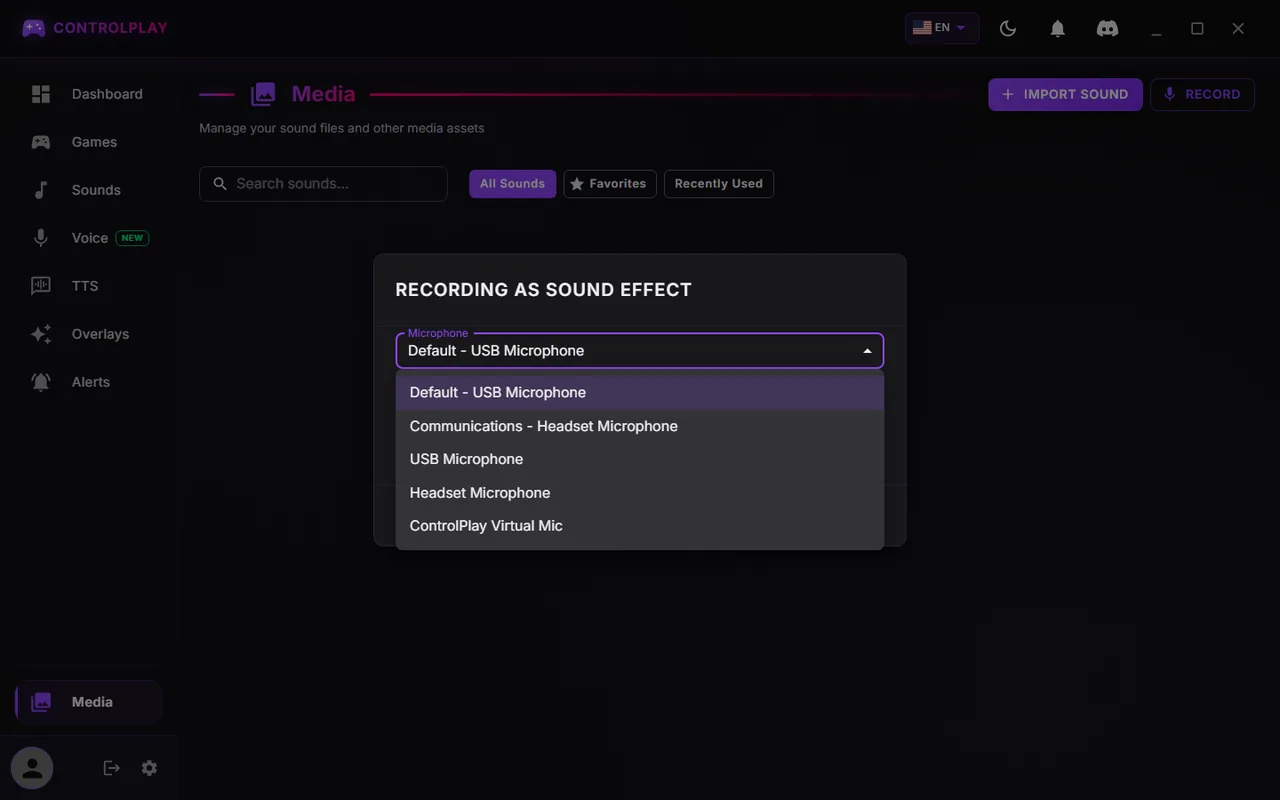
Listen to every take before you save it. If the picked mic can't be opened, the window records the Windows default while the list still shows your pick. The recorder uses no echo cancellation, noise suppression or automatic gain, so a clean mic matters here too. For your TTS voice, watch the Quality bar in the window: longer takes score higher, and Save only works from 10 seconds on. More in the custom TTS voice guide and the soundboard guide.
When ControlPlay is closed
If closing the window only sends ControlPlay to the tray (Minimize to System Tray), it keeps running, effects included.
To really quit, right-click the ControlPlay icon next to the clock (click the ^ arrow there if you don't see it) and pick the bottom entry. If closing the window asks you what to do, Close App works too. ControlPlay Virtual Mic then goes silent for about ten seconds. After that, your voice comes through again, without effects, sounds, TTS, Pre-Gain or Output Trim, so Discord and OBS can keep hearing you. Test this once before you rely on it.
Pause ControlPlay (hide virtual mic from system) in the Ghost Voice section is something else: it hides ControlPlay Virtual Mic from Windows and asks for admin approval.
Fix common problems
| Problem | What to do |
|---|---|
| ControlPlay uses the wrong mic | Pick yours under Select your microphone in Settings → Audio. ControlPlay never switches mics by itself: after unplugging, it waits for yours and reconnects. If it doesn't, click Try again on the Voice page. |
| Quiet or silent voice, but your interface shows a signal | Your mic is probably in input 2. Set Mic Channel Mapping to Right channel only. |
| Distorted voice | Turn the gain on your mic or interface down until the Input meter stays out of the red and the clipping warning disappears. Set Pre-Gain back to 0. |
| Crackling or a scratchy sound | Check that Audio enhancement in the Input Gain card is on. |
| Echo, or your voice twice on stream | Keep one mic source in OBS: ControlPlay Virtual Mic. Pick a listen device that OBS doesn't record, or the Off entry. Never pick speakers on your desk. Twice only during effects? Then OBS records the device that Hear myself when triggered plays on. Pick another listen device, or click the headphones icon on each effect card to switch it off. |
| Discord doesn't hear effects or sounds | Set Discord's input to ControlPlay Virtual Mic and switch off its noise suppression, echo cancellation and automatic gain control. Turn on Sounds in Voice Chat. Without the USB device, set Mode to Automatic (without ControlPlay hardware). |
| ControlPlay Virtual Mic is silent | Turn off Pause ControlPlay (hide virtual mic from system). If the Voice page says the Ghost Voice driver is missing, click Open setup. For other errors there, click Try again. Just quit ControlPlay? Wait about ten seconds. |
| Another app is using the virtual microphone. Close it and try again. | Another program is still sending audio into ControlPlay Virtual Mic, for example a second copy of ControlPlay. Discord or OBS just listening to it doesn't cause this. Quit that program or restart your PC. ControlPlay keeps trying and, if it can't, shows Microphone blocked with Try again. |
| Your voice drops while TTS plays | Mute mic during TTS playback on the TTS page is on by default, so TTS in voice chat goes out alone. Switch it off there or for a single voice. |
| A recording sounds bad or silent | Pick your real mic in the recorder's Microphone list and listen to a test take. With an interface, use input 1. |
Go live
Your mic sounds good with Hear Myself or in a short OBS recording? Then you're ready. The ControlPlay setup guide covers the rest, from the Twitch Extension to your first test stream.