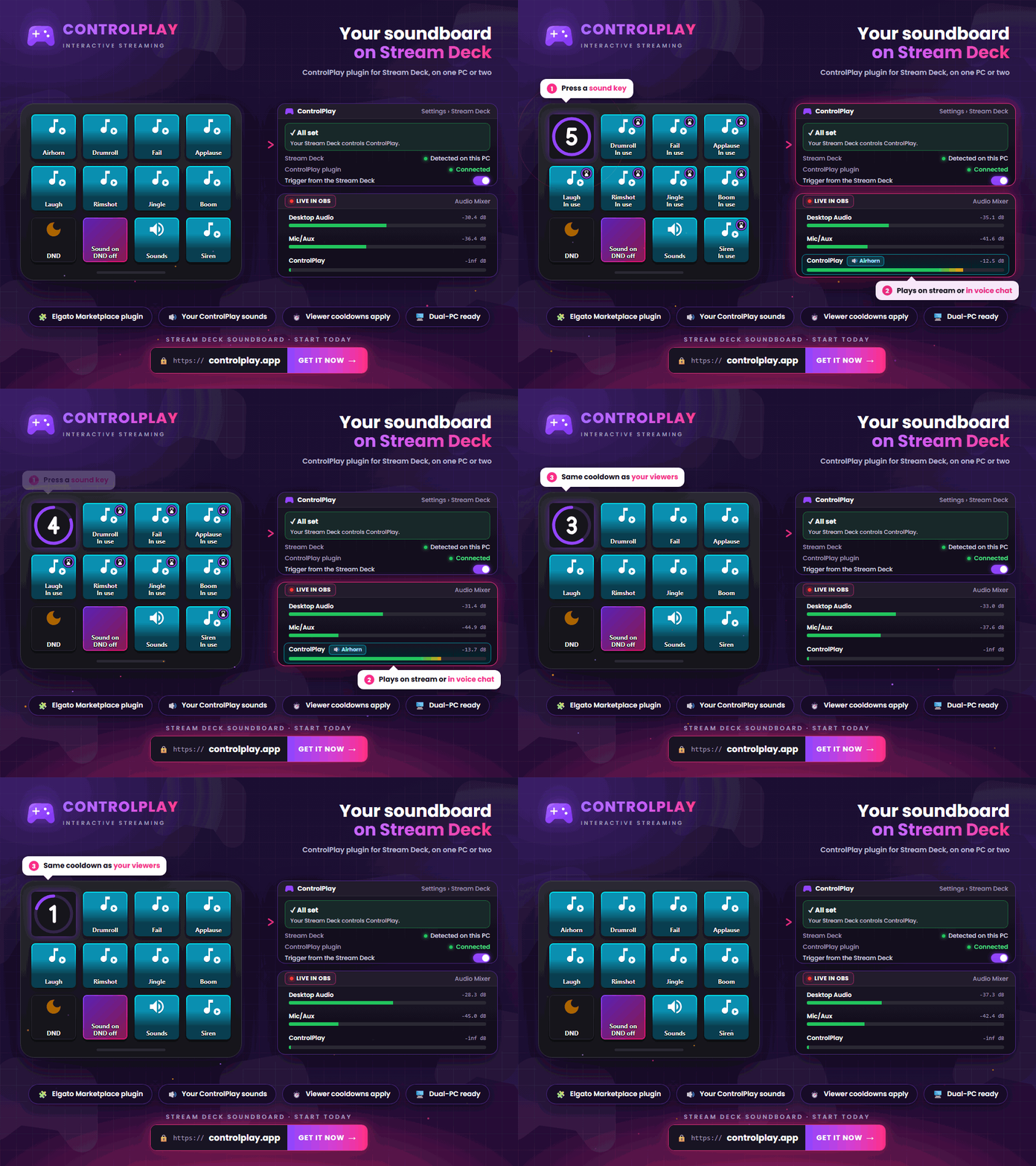
The ControlPlay plugin turns your Stream Deck into a soundboard for Twitch. You play your sound effects with one press, on stream or through your mic, so your teammates in Discord or in your game hear them too. Your viewers trigger the same sounds through the ControlPlay Twitch Extension. You don't need a second soundboard app.
Here you'll see when this pays off for your stream and set up your soundboard step by step.
Why use ControlPlay as your Stream Deck soundboard?
A plain soundboard plays files. ControlPlay also connects your sounds to your stream and your voice chat:
- Sounds through your mic. With the Voice Chat output, sounds run through ControlPlay Virtual Mic. If Discord or your game uses that mic, your squad hears the sounds along with your voice.
- One library for you and your viewers. You add each sound to ControlPlay once. Viewers trigger it through the Twitch Extension with Coins, you trigger it with a key. Nothing needs to be maintained twice.
- Shared rules. Your keys follow the same cooldowns and the same DND mode as your viewers. The key shows you the time left.
- Live control. One key hides all sounds from your viewers, and your own sound keys keep playing. A second key switches DND mode.
- Works with two PCs. Your deck can sit on your streaming PC while ControlPlay runs on your gaming PC.
- Free, no hardware. Sounds are part of ControlPlay's free features and don't need a USB device.
The same path as your viewers. Pressing “Play Sound” plays the sound effect once, on stream or through your mic, with the same cooldowns and DND rules as a redemption through the Extension. It costs no Coins, and no viewer notification appears on stream.
That's how ControlPlay replaces your separate soundboard: your viewers trigger sounds through the Twitch Extension, you play the same sounds from your Stream Deck, and through your mic they reach your voice chat too. OBS captures your sounds like any other audio on your PC, so your soundboard works on any stream, whether on Twitch, YouTube, Kick or TikTok.
Set up the Stream Deck plugin
- Install the plugin. Install the ControlPlay plugin from the Elgato Marketplace.
- Start ControlPlay. If ControlPlay runs on the same PC, the plugin connects by itself. You don't need a code.
- Add your first key. Drag “Play Sound” from the action list onto a key and pick your sound effect in the key's settings.
If the plugin can't find ControlPlay, start ControlPlay and click Search again in the key's settings. ControlPlay shows whether everything works under Settings → Stream Deck. Trigger from the Stream Deck must be switched on there.
Build your soundboard on the Stream Deck
- Pick your sounds. Choose the sounds you really use often, like reactions, jingles and inside jokes. Short clips work best because your deck plays only one sound at a time. The Twitch soundboard guide shows how to upload sounds and match their volume.
- Set the output. In ControlPlay, set Audio Output for each sound to Speakers for your stream or Voice Chat for your mic. The next section explains voice chat.
- Set cooldown and DND. The cooldown you set for a sound in ControlPlay also applies to your key. When a viewer triggers the sound, your key waits too. Allow the sounds that may play during important moments in DND mode.
- Add the keys. Drag “Play Sound” onto a key for each sound. The sound's name shows up on the key automatically. Put “Sound System” and “Do Not Disturb” in the same row so you can control both live.
- Organize more sounds. If you run out of keys, spread your sounds across folders or pages in the Stream Deck software, for example reactions and jingles.
- Keep the ControlPlay icon. With a custom icon, the key shows no cooldown ring. Keep the ControlPlay icon if you want to see the time left.
- Test everything. Press each key once and watch the level in the OBS audio mixer.
While a sound plays, your other sound keys show “In use” or the time left. That also applies when a viewer started the sound.
Play sounds through your mic: Discord and in-game voice chat
With the Voice Chat output, your Stream Deck becomes a soundboard for your voice chat. Here's how to set it up:
- Set up Ghost Voice. Ghost Voice provides ControlPlay Virtual Mic. The Twitch voice changer guide shows the setup.
- Choose Voice Chat as the output. In ControlPlay, set Audio Output to Voice Chat for every sound your squad should hear.
- Select the virtual mic. In Discord, TeamSpeak or your game, select ControlPlay Virtual Mic as the input device. Your voice goes through the same mic.
- Hear it yourself. With Audible for me, you also hear voice chat sounds in your headphones.
- Test it. Start the mic test in Discord and press a sound key.
If you use push-to-talk, the app only transmits the sound while your push-to-talk key is held. ControlPlay handles push-to-talk automatically only with a connected ControlPlay USB device. With voice activation, you don't need a USB device. Whether an app picks up the sound depends on its audio settings.
Use your Stream Deck on a streaming PC
If your Stream Deck is connected to your streaming PC and ControlPlay runs on your gaming PC, turn on Stream Deck on another PC (Dual-PC) in ControlPlay under Settings → Stream Deck. The page walks you through three steps: allow the firewall, note the address, show the pairing code. Windows must treat your home network as private for this.
On the streaming PC, click Other PC in the settings of a ControlPlay key, enter the address and pair with the code. ControlPlay still plays the sounds on your gaming PC, so check that its audio reaches OBS on your streaming PC.
Stream Deck soundboard not working? Check these points
| Problem | Check first |
|---|---|
| Key shows “Update ControlPlay” | Update ControlPlay to the latest version. |
| Key shows “Off in ControlPlay” | Is Trigger from the Stream Deck switched on under Settings → Stream Deck? |
| Key shows “In use” | A sound is already playing, and sounds from viewers count too. Wait until it ends. |
| Key shows “Sound disabled” | The sound is hidden from viewers. Show it again, and the key plays it too. |
| Key shows “DND on” | DND mode is on. Only the sounds you allowed for it play. |
| Nothing reaches voice chat | Is Ghost Voice active and is the sound set to Voice Chat? Is ControlPlay Virtual Mic selected as the input in Discord or your game? Also check your push-to-talk key. |
| Dual-PC doesn't connect | Did you run the firewall command? Is your network set to private in Windows? Is the address in the plugin correct? |
| Viewers don't hear the sound | Is OBS capturing the right source? Check it with the Twitch soundboard guide. |
Take your Stream Deck soundboard live
Create your ControlPlay account, install the desktop client and add your sound effects. Then install the plugin, build your sound keys and test each one in OBS. Check voice chat sounds in Discord's mic test as well. Finally, trigger a sound with a cooldown from a second Twitch account in a short test stream. If your key then shows the time left too, the shared cooldowns work and you're ready to go live.
The Twitch soundboard guide shows how your viewers trigger sounds themselves. The ControlPlay promotion guide explains how to point viewers to your ControlPlay actions.